NullPrivate User Guide | NullPrivate Ad-Blocking & Anti-Addiction
Welcome to the NullPrivate Documentation Center. Learn how to block ads, trackers, and malicious sites in one click with our encrypted DNS service, providing comprehensive network security and privacy protection for you and your family, including family anti-addiction features. Detailed setup tutorials, feature introductions, and FAQs are provided.
Welcome to the World of NullPrivate – Your Personal Network Security Guardian
Still troubled by ubiquitous ads, annoying pop-ups, and potential privacy leaks?
NullPrivate provides an unbreakable digital barrier for all your connected devices. Using powerful encrypted DNS technology, we block ads, trackers, and malicious websites right at the source of every network request, giving you a clean, fast, and secure internet experience.
🚀 Why Choose NullPrivate?
We believe everyone deserves a pure and secure cyberspace.
Ads Gone for Good: Block ads in videos, web pages, and apps for an immersive content experience.
Privacy First: Prevent third-party trackers from collecting your browsing habits and safeguard your personal privacy.
Malware Shield: Automatically intercept phishing sites, malware, and scams to protect your home network.
Setup in Seconds: No software installation required—configure natively on phones, computers, or routers once and for all.
Cross-Platform Support: Detailed step-by-step tutorials for Windows, macOS, iOS, Android, and Linux.
Family Anti-Addiction: Create a healthy online environment for children and prevent excessive screen time.
Core Features
🛡️ Free Services
All users enjoy robust basic protection:
Public Access: Full support for IPv4 and IPv6 environments.
Ad Blocking: Intercept the vast majority of ad sources.
Privacy Protection: Block known user-behavior trackers.
Security Shield: Stay away from phishing and scam sites—ideal for setting up for elderly family members.
Family Protection: Basic anti-addiction tools to help manage household internet usage.
✨ Premium Customization (Paid)
Unlock more personalized and granular management:
Usage Analytics: See which sites devices on your network visit—data at your fingertips.
Anti-Addiction: One-click blocking of adult content and gaming sites to create a healthy environment for kids.
Custom Rules: Take full control of your network—block specific apps, websites, or games.
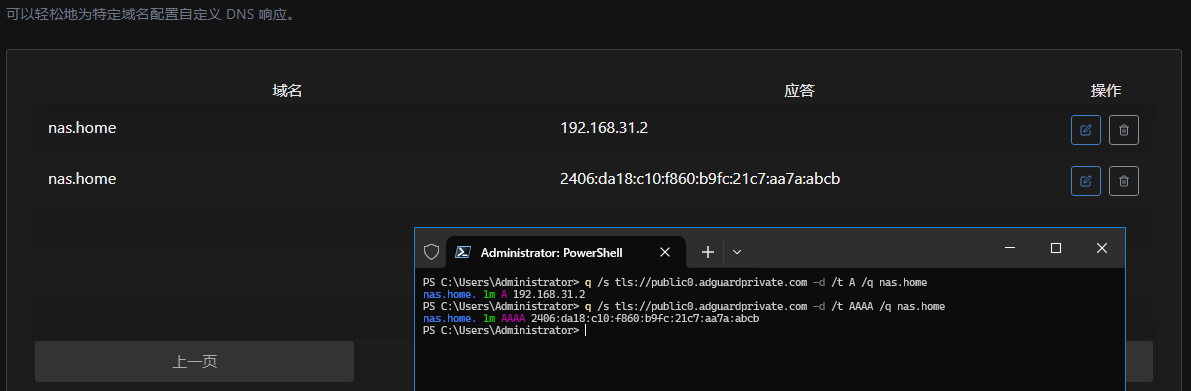
Internal Network Access: Custom domain resolution for easy access to your NAS or home server.
Multi-Device Management: Use client IDs to distinguish and manage policies and logs for each device.
Anti-Addiction Settings: Fine-grained time management and content filtering to prevent children from overusing the internet.
Private Service User Guide: Access logs, blocking statistics, custom rules, and authoritative resolution for enhanced ad blocking, privacy protection, and screen time management.
Main Services Provided
Basic Features
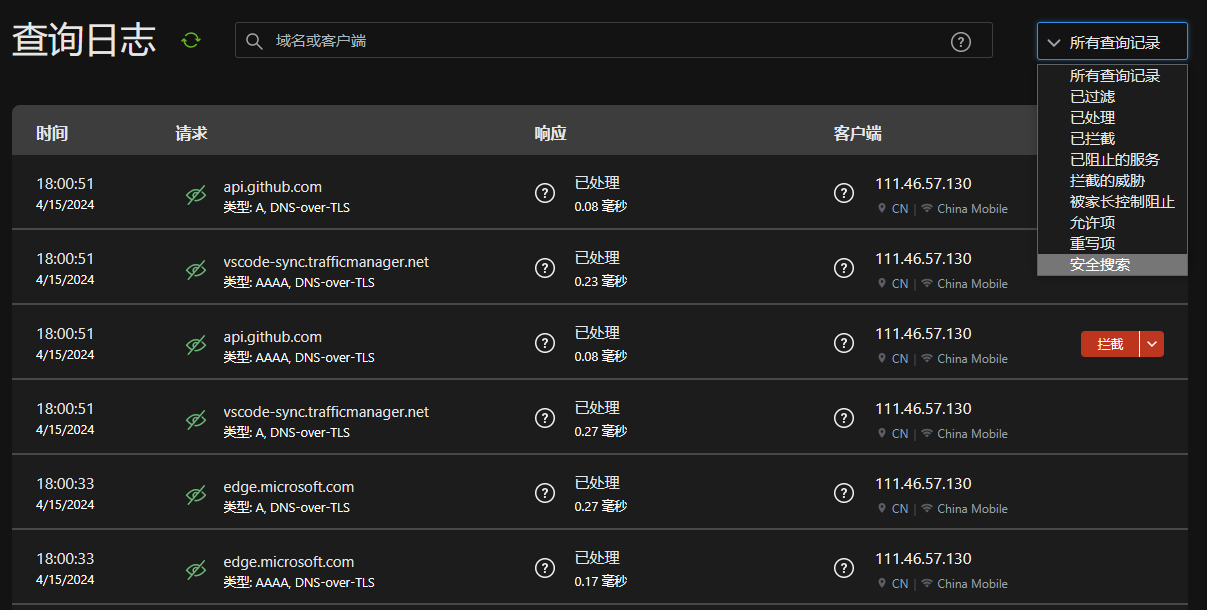
Access Logs
Blocking Logs
Statistics
Custom Upstream
Custom Filter Rules
Custom Resolution
Whitelist Mode
Advanced Features
HTTP3 Support
DDNS Support
ECS Support
Rule-based Resolution
Block Specific Applications
Schedules
Access Logs
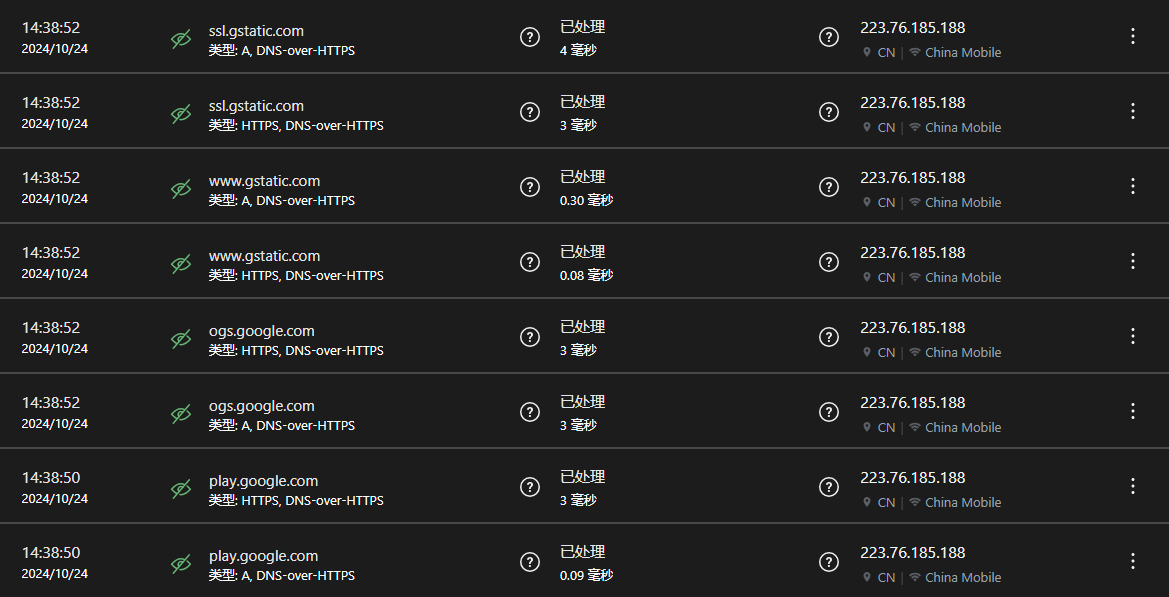
View internet access records. The private service provides 24-hour network access log query.
Blocking Logs
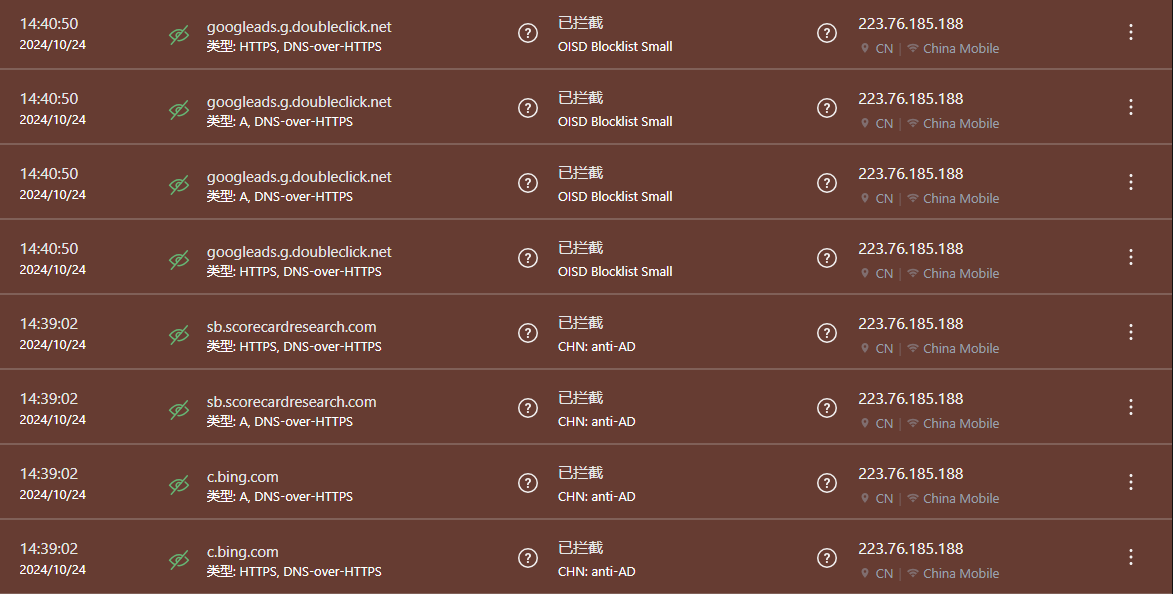
View blocking records to understand which ads were blocked and which websites were intercepted.
Statistics
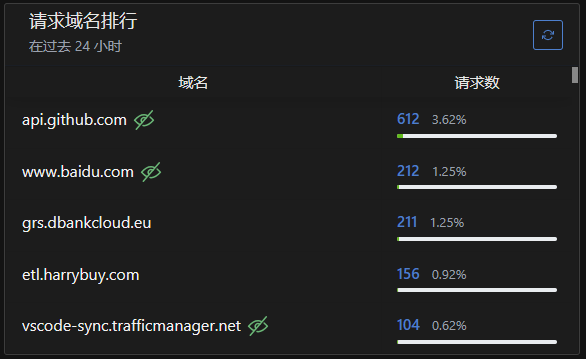
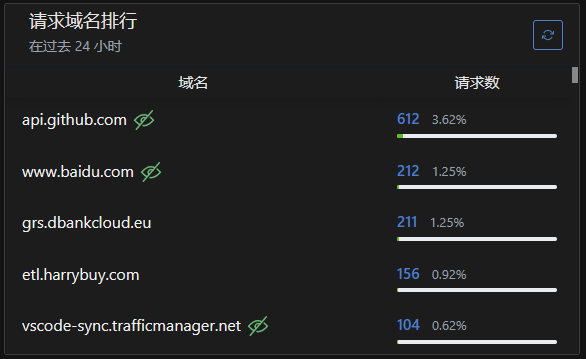
The private service provides network access statistics within 24 hours to understand user browsing habits.
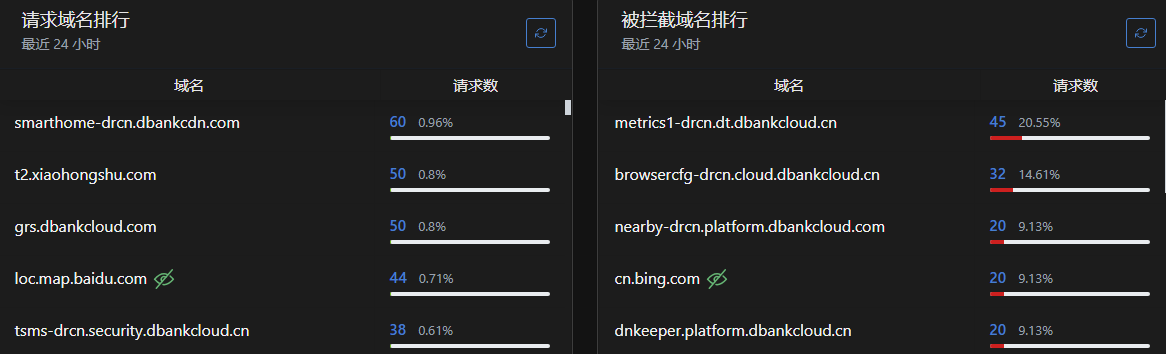
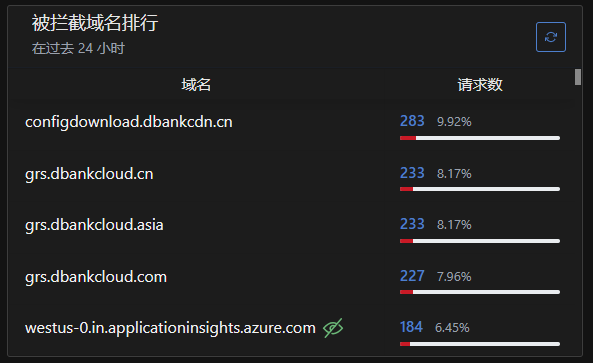
Statistics display most visited websites and most blocked websites.
Custom Rules
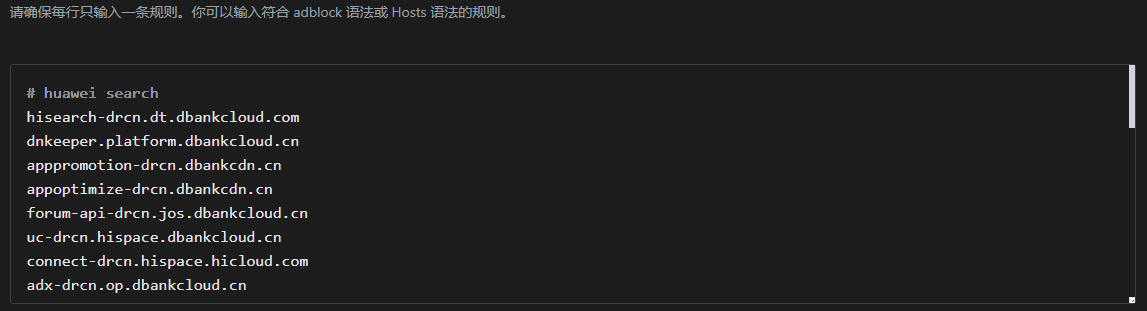
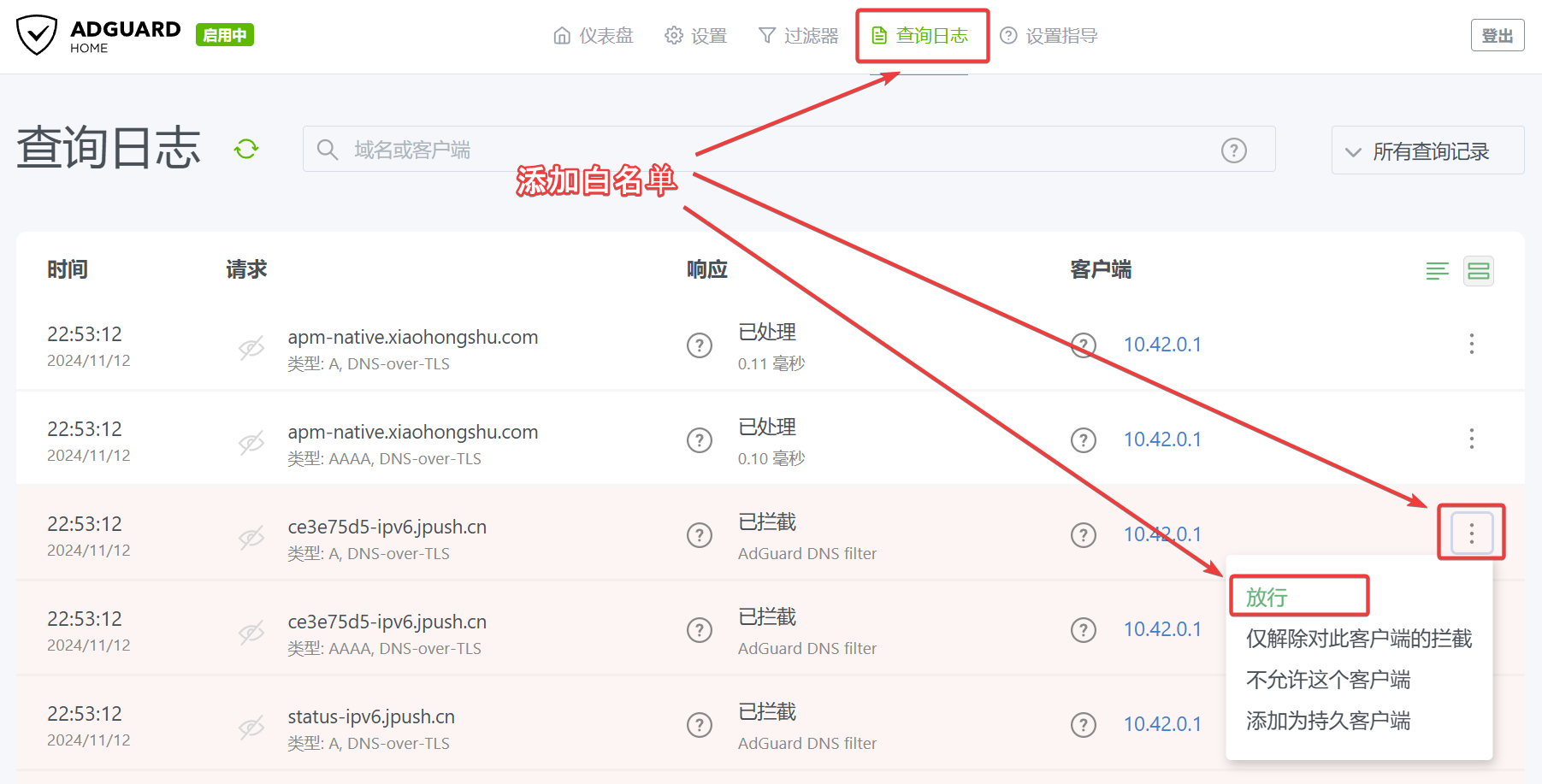
Create custom rules within the private service to block ads in frequently used apps or allow websites you don’t consider as ads.
Users may need to check access logs and observe website query records when launching specific apps to add custom rules.
Whitelist Mode
To prevent certain types of websites from being blocked, set whitelist mode to only allow access to specific websites.
Whitelist has higher priority than blacklist. Websites in the whitelist won’t be blocked. Users can add frequently used websites to the whitelist to avoid false blocking.
Authoritative Resolution
Supports adding authoritative resolution for enterprise or home devices, resolving specified names to home device IP addresses, eliminating the need to memorize IP addresses.
Users don’t need to purchase domains or complete ICP registration. Simply add authoritative resolution rules within the private service.
2 - How to Configure
“NingPing” configuration guide
After the paid service expires,
The service will be disabled immediately, and attempting to access the admin dashboard will redirect you to the service status page.
Personal settings will be retained for 7 days; if you do not renew within 7 days, all service data will be permanently deleted.
Once the service is completely removed, your custom domain will no longer be able to access the service. Remember to update your encrypted DNS settings, otherwise you will be unable to access the Internet.
Need help?
Contact on WeChat
private6688 or
Send email
[email protected] Please describe your issue in detail, and we will respond as soon as possible.
2.1 - Android
Android Private DNS Configuration Guide: Set {device}.{username}.adguardprivate.com to enable system-level encrypted DNS, reducing latency and enhancing privacy protection.
Must add device1. prefix, i.e. device1.{xxxxxxxxxxxxxxxx}.adguardprivate.com
Directly using {xxxxxxxxxxxxxxxx}.adguardprivate.com won’t work
Replace {xxxxxxxxxxxxxxxx} with your exclusive DNS server address
Verification
After configuration:
System will automatically verify DNS connection status
“Connected” status indicates successful setup
Troubleshooting
If configuration fails, check:
Correct DNS prefix: Must use device1.{xxxxxxxxxxxxxxxx}.adguardprivate.com format
Whether DNS server address is correct
Network connection status
Whether account is active
Setup Demo
2.2 - iPhone
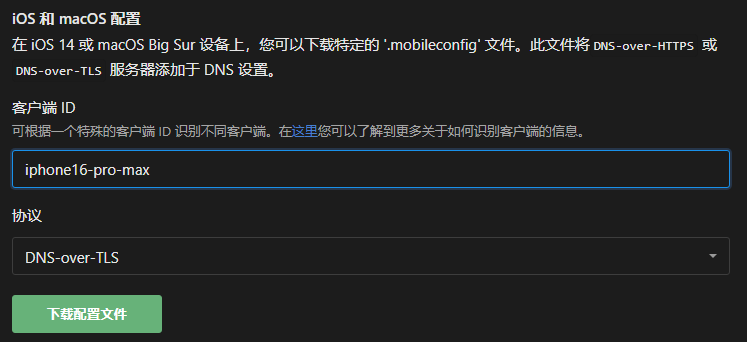
iOS/iPadOS Configure DoH/DoT: Download and install the exclusive configuration profile to enable encrypted DNS at system level for safer children internet access and fewer ads.
iOS 14 and later versions natively support encrypted DNS via DNS over HTTPS (DoH) and DNS over TLS (DoT). You can enable it through the following steps:
Open the Safari browser and navigate to your private service backend: Setup Guide -> DNS Privacy
Download Configuration Profile
Open Settings on your iPhone
Tap General
Tap VPN & Device Management
Select your dedicated configuration to install
Configuration Demo
2.3 - Windows
Windows configuration for DoH/DoT encrypted DNS: System-level settings and browser-built-in DoH solutions to ensure stable ad-blocking and privacy protection.
Windows 11
Windows 11 (version 21H2 and later) natively supports DNS over HTTPS (DoH). You can enable it using the following method:
Open Settings
Navigate to Network & Internet
Select Ethernet
Under DNS server assignment, click Edit
Select Manual
For IPv4 Preferred DNS, enter 120.26.96.167. For IPv6, use 2408:4005:3de:8500:4da1:169e:dc47:1707
Set DNS over HTTPS to: On (manual template)
In DoH template, enter https://xxxxxxxxxxxxxxxx.adguardprivate.com/dns-query/windows1 where {xxxxxxxxxxxxxxxx} is your encrypted DNS service username and windows1 is your OS identifier
Do not check Fallback to plaintext
For alternate DNS, you may optionally use 223.5.5.5 (Aliyun Public DNS) with DNS over HTTPS off and Fallback to plaintext checked
Windows 10 and Earlier Versions
Windows 10 and earlier versions don’t natively support encrypted DNS. However, modern browsers like Chrome/Edge and Chromium-based browsers (including Chinese browsers like 360/QQ) allow DoH configuration. Chrome setup instructions:
Open Chrome Settings
Navigate to Privacy, search, and services
Scroll to Security
Enable Use secure DNS
Under Choose service provider, enter https://xxxxxxxxxxxxxxxx.adguardprivate.com/dns-query/browser1 where {xxxxxxxxxxxxxxxx} is your encrypted DNS username and browser1 is your browser identifier
For other browsers, refer to their respective settings (usually under Settings > Privacy > Security).
2.4 - macOS
macOS DoH/DoT setup: download and install the configuration profile to enable system-wide encrypted DNS, block trackers & ads, and enhance network security.
macOS Big Sur and later natively support DNS over HTTPS (DoH) and DNS over TLS (DoT) encrypted DNS. You can enable it as follows:
Open the built-in Safari browser and navigate to the NullPrivate service dashboard, Setup Guide → DNS Privacy.
Download the profile.
Open System Settings.
Go to Privacy & Security.
Select Profiles.
Choose your dedicated profile and install it.
2.5 - Browser
Enable DoH in Chrome/Edge and other Chromium browsers: Activate “Secure DNS”, fill in your dedicated DoH endpoint for enhanced privacy and stable resolution.
Chromium 79+ browsers support DoH. Here’s how to configure Chromium-based browsers (Chrome/Edge/360/QQ etc.):
Open Chrome browser Settings
Navigate to Privacy, search, and services
Scroll to Security
Enable Use secure DNS to specify how to look up website network addresses
In Choose service provider, enter https://xxxxxxxxxxxxxxxx.adguardprivate.com/dns-query/browser1, where {xxxxxxxxxxxxxxxx} is your dedicated encrypted DNS username, and browser1 is your browser ID.
3 - Feature Description
NullPrivate - Professional ad-blocking and privacy-protection solution
Product Overview
NullPrivate is a powerful network ad-blocking tool focused on providing comprehensive network privacy protection and content-filtering services. With advanced filtering technology, it helps users achieve a safer, faster, and cleaner web-browsing experience.
Core Features
Smart Encryption Service
Supports DoT/DoH encryption protocols
High-performance domain name resolution
Intelligent caching mechanism
Comprehensive Ad Blocking
Precise ad identification
Pop-up and tracker blocking
Custom filtering rules
Privacy Protection
Encrypted queries
Logging options
Anti-tracking protection
Advanced Features
Real-time statistical analysis
Anti-addiction
Schedule settings
Whitelist & blacklist management
Custom rewriting
Please use the left-hand table of contents to view detailed instructions for each feature.
3.1 - Web Ad Blocking
NullPrivate effectively blocks web ads through intelligent analysis and filtering technology, providing a cleaner browsing experience. It not only significantly improves webpage loading speed but also reduces bandwidth consumption and protects your online privacy.
Basic Principles of Ad Blocking
“NullScreen” employs DNS filtering technology to monitor and analyze network requests in real-time. When detecting ad-related domain requests, the system automatically returns a null address or local loopback address, effectively blocking ad content loading. This method is both efficient and transparent to users, without affecting normal browsing experience.
Intelligent Blacklist System
NullPrivate adopts a multi-level blacklist management mechanism:
Automatic Updates: The system regularly fetches the latest ad domain lists from trusted sources
Category Management: Classifies domains into different categories such as ads, trackers, and malware
Performance Optimization: Uses efficient matching algorithms to ensure quick responses
Statistical Analysis: Provides detailed blocking statistics to help
3.2 - Mobile Ad Blocking
Effectively block ads in the mobile OS and apps, boosting device performance and user experience
Problem Overview
Many Android devices ship with pre-installed adware that:
Pops up ads at inappropriate moments
Continuously collects user data in the background
Consumes system resources, causing performance degradation
Generates unnecessary network traffic
Significantly shortens battery life
AdGuard Solution
“NingPing” protects your device by:
Blocking network requests from adware
Preventing malicious tracking
Optimizing device performance
Extending battery life
Reducing mobile data usage
3.3 - Privacy Protection
Intercept privacy leakage requests to protect user privacy.
The Relationship Between Privacy and Advertising
Advertisers’ revenue primarily comes from ad conversions. To improve conversion rates, platforms need to:
Increase user retention
Deliver personalized ads
This requires collecting vast amounts of user privacy data. Platforms circumvent legal restrictions through:
Complex user agreements
Data exchanges with partners
Disguised data anonymization
Priority of Privacy Protection
Privacy protection is more important than mere ad blocking:
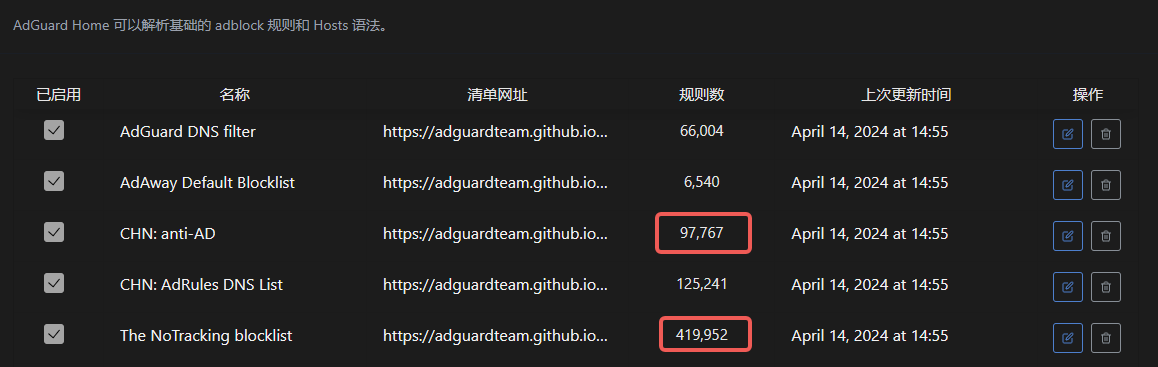
AdGuard’s Chinese region tracking blocking rules (>400,000) far exceed ad rules (<100,000)
Some platforms generate more revenue through privacy data despite having fewer ads
Behind Platforms’ “Thoughtfulness”
So-called personalized recommendations often don’t truly understand user needs, but rather serve as marketing strategies:
“You might like this” actually means “We want to sell this”
Seemingly thoughtful services mask continuous data collection
How to Protect Yourself
Learn “cyber discretion” – control privacy leaks to avoid accurate profiling by platforms. AdGuard Private Service can help you achieve this goal.
3.4 - Malware Blocking
Intercept malware through multi-layer protection mechanisms to safeguard devices and data security
What is Malware?
Malware is a category of software designed to damage or gain unauthorized access to computer systems. It may:
Steal personal information and sensitive data
Disrupt system functions and files
Encrypt data for ransom
Recruit devices into botnets
How Malware Spreads
Hackers typically spread malware through the following methods:
Prevents communication between malware and command-and-control servers
Identifies and stops suspicious data exfiltration
Regularly updates malware signature databases
It is recommended that you also adopt additional security measures, such as keeping your system and software up to date and exercising caution when downloading and opening attachments.
3.5 - Adult Content Blocking
“NullPrivate” provides powerful adult content filtering, using intelligent recognition and blocking mechanisms to effectively shield against inappropriate content, creating a safe network environment for families and enterprise users.
Feature Overview
“NullPrivate” employs a multi-layer content filtering mechanism that can effectively identify and block:
Pornographic and adult content sites
Violent content
Gambling-related sites
Other harmful information
How It Works
The system achieves content blocking through:
DNS-level blocking: Prevents domain resolution of known harmful sites
Intelligent categorization: Classification system based on multiple trusted data sources
Real-time updates: Regularly updated blocking rules to ensure protection effectiveness
Exception management: Set up whitelists to avoid false positives
Access logs: View blocking records
Application Scenarios
Family protection: Create a safe browsing environment for minors
Enterprise management: Ensure employee access to work-appropriate sites
Public spaces: Suitable for public networks in libraries, schools, etc.
Notes
Recommended to use in conjunction with anti-addiction features
Regularly check and update filtering rules
If false positives occur, promptly add to whitelist
If circumvention is detected, submit feedback
3.6 - Social Network Blocking
Protect your online privacy by blocking social network trackers and embedded components
Risks of Social Network Tracking
Social network platforms collect user data through various means:
Social plugins and share buttons
Embedded content and widgets
Third-party cookies and trackers
Cross-site user behavior analysis
How AdGuard Protects You
“NingPing” safeguards your privacy by:
Blocking social media trackers
Preventing unauthorized data collection
Filtering social network ads
Stopping user profiling analysis
Recommended Usage
Enable the social network filter
Regularly check the blocking log
Set up a whitelist as needed
Keep filtering rules updated
With these measures, you can continue using the core features of social networks while protecting yourself from unwanted tracking and data collection.
3.7 - Phishing Site Blocking
Blocks phishing site requests, safeguards users’ personal assets, and provides all-around network security protection.
What is a phishing site?
A phishing site is a fraudulent website that masquerades as a legitimate one in order to obtain sensitive information such as personal details and account passwords. These sites usually imitate:
Banks and payment platforms
Social networks
E-commerce sites
Government agency websites
Main risks
Stealing user accounts and passwords
Pilfering bank card and payment information
Spreading malware
Causing personal privacy leaks
Leading to financial loss
How AdGuard protects you
“NingPing” offers protection through:
Real-time URL safety checks
Blocking known phishing sites
Preventing malicious domain resolution
Providing safe-browsing alerts
Safe-usage recommendations
Enable AdGuard’s phishing protection
Pay attention to the authenticity of the URL
Do not click links from unknown sources
Regularly update the AdGuard rule database
3.8 - Tracking Protection
Block tracking requests to fully protect user privacy and enhance the browsing experience.
What is Tracking?
Tracking is the practice of websites and applications collecting user data. Common tracking methods include:
Cookie tracking
Tracking pixels
Browser fingerprinting
Device identifier collection
Behavioral analysis scripts
Impact of Tracking
Tracking activities have the following negative effects:
Violate user privacy by exposing personal behavioral data
Increase network traffic consumption
Reduce device battery life
Slow down webpage loading speeds
How AdGuard Protects You
“NingPing” fully protects your privacy by:
Intelligently identifying and blocking tracking requests
Preventing third-party cookies
Removing tracking parameters
Blocking common analytics scripts
By using AdGuard, you can enjoy a safer, faster, and more energy-efficient web experience.
3.9 - Malicious Traffic Interception
Prevent malicious traffic hijacking and content tampering through encrypted DNS and traffic protection, ensuring secure network access
Malicious Traffic Interception
Problem Background
In daily internet usage, you may encounter the following security risks:
ISP DNS hijacking that redirects you to fake websites
Public WiFi hotspots injecting advertising content
Man-in-the-middle attacks tampering with web content
Unencrypted traffic being monitored and hijacked
Solution
Through the following technical means, we can effectively protect against these threats:
Enable encrypted DNS queries
Use HTTPS encrypted connections
Establish private secure channels
Real-time monitoring of abnormal traffic
These protection measures can ensure your network access is safe and reliable, preventing various malicious hijacking and content tampering.
3.10 - Access Request Logs
Through detailed request logs and statistical data, help you comprehensively understand and manage network traffic.
Complete Access Request Logs
Access request logs provide the following detailed information:
Time: The specific time when the request occurred
Client: The IP address of the device initiating the request
Request Target: The domain name or IP address being accessed
Response Status: The processing result of the request
Filter Rule: The triggered filter rule (if any)
You can use the search box to filter logs by domain name, IP, or rule name. Logs are retained for 3 days by default.
Top Requested Domains
Domain access statistics display:
Most frequently accessed domains
Request count per domain
Generated upstream/downstream traffic
Last access time
Supports sorting by request count or traffic volume to help identify high-frequency accessed websites.
Top Blocked Domains
Blocking statistics show:
List of blocked domains
Block count statistics
Triggered filter rules
Last blocking time
You can directly perform in the list:
Add mistakenly blocked domains to whitelist
View specific rules causing blocks
Export statistical data for analysis
3.11 - Statistics
Comprehensive DNS query statistical analysis to help you understand network usage.
DNS Query Statistics
AdGuard private service provides detailed DNS query statistical analysis to help you better understand network usage.
Top Requested Domains
Statistics include:
Domain access frequency statistics
Request count per domain
View trends by time period
Support search and filtering
Blocking Records Analysis
Detailed display:
List of blocked domains
Blocking rule matching details
Blocking reason explanations
Blocking time records
Data Applications
Statistical data helps you:
Identify potential security threats
Optimize ad filtering rules
Analyze network usage habits
Adjust network access policies
3.12 - Supported Platforms
“NingPing” supported platforms and configuration guide
Supported Protocols
“NingPing” supports the following encrypted DNS protocols:
DoT (DNS over TLS) - DNS queries encrypted via TLS
DoH (DNS over HTTPS) - DNS queries encrypted via HTTPS
Supported Platforms
Windows 11
Supports system-level DoH configuration
Configure via Settings -> Network & Internet -> DNS server
macOS (Big Sur and above)
Supports system-level DoH/DoT configuration
Can be configured via System Preferences -> Network
iOS (14.0 and above)
Supports system-level DoH/DoT configuration
Can be configured in Settings -> General -> VPN & Device Management
Android (9.0 and above)
Supports system-level Private DNS (DoT)
Configure in Settings -> Network & Internet -> Private DNS
Browser Support
Chrome/Edge/Brave: Supports DoH
Firefox: Supports DoH/DoT
Safari: Follows system DNS settings
For detailed configuration instructions, please refer to the specific configuration guides for each platform.
3.13 - Configuration Guide
Detailed configuration instructions for “Ning Screen”, including quick start, advanced settings, and FAQ.
Quick Start
“Ning Screen” adopts a “ready-to-use” design philosophy:
Transparent and verifiable privacy commitment: built on AdGuard Home, licensed under GPL-3.0, full source code and change logs are public for better security and auditability.
This project is inherited from an open-source project and follows the same open-source license GPL-3.0.
NullPrivate supports multiple custom rule formats, allowing flexible configuration to meet your needs.
NullPrivate supports multiple custom rule formats, allowing flexible configuration to meet your needs. Below are the commonly used rule formats and examples:
Rule Format
Example
Description
Domain Block
||example.org^
Blocks example.org and all its subdomains
Allowlist
@@||example.org^
Adds example.org and all its subdomains to the allowlist
DNS Redirect
127.0.0.1 example.org
Resolves example.org to the specified IP
Comment
! comment or # comment
Adds rule comments without affecting actual filtering
Regex
/REGEX/
Matches domains using regular expressions
Advanced Usage
You can combine multiple rule types
Rule priority: Allowlist > Blocklist > DNS Redirect
With custom DNS resolution, you can configure friendly domain names for LAN devices, simplifying network device management and enhancing user experience.
Feature Overview
Custom DNS resolution allows you to:
Configure custom domain names for LAN devices
Implement private domain name resolution
Securely and conveniently access internal network services
Application Scenarios
Network Device Access
NAS device: nas.home → 192.168.1.100
Router: router.home → 192.168.1.1
Printer: printer.home → 192.168.1.200
Development & Testing Environments
Local service: api.local → 127.0.0.1
Test environment: test.local → 192.168.1.50
Container: redis.local → 172.17.0.2
Configuration Guide
Basic Syntax
Domain RecordType TargetAddress
home A 192.168.1.2
*.home A 192.168.1.2
Supported Record Types
A record: IPv4 address resolution
AAAA record: IPv6 address resolution
CNAME record: Domain alias
Security Features
Only effective on configured devices
Won’t expose internal IP addresses
Supports wildcard domain configuration
Takes effect immediately without restart
Usage Recommendations
Choose intuitive domain naming
Recommended to use .home suffix
Track internal IP changes
Regularly check resolution configurations
3.17 - Custom Block List
With the custom block list feature, you can precisely control network access and achieve personalized content filtering and ad blocking.
Feature Overview
Custom block lists provide:
Precise domain blocking control
Flexible rule import/export
Real-time update mechanism
Convenient list management interface
Supported List Formats
Standard Format
||example.com^
||ads.example.com^
Mainstream Subscription Sources
AdGuard format
HOSTS format
Domain format
System Preset Lists
We offer the following optimized lists:
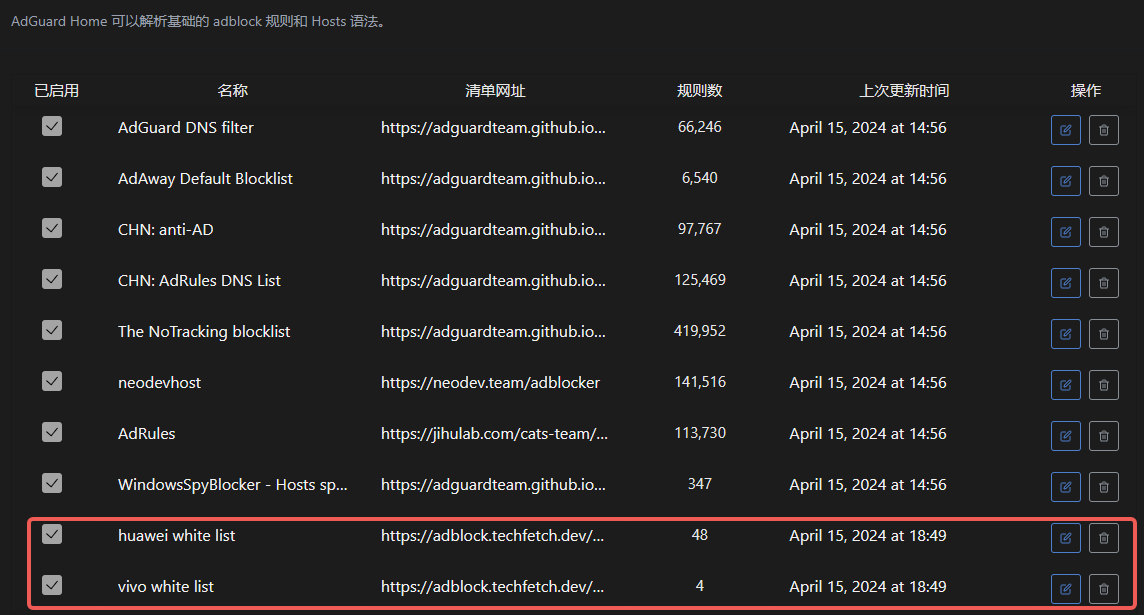
Mobile Manufacturer Ads Blocking: Specifically targets brand-specific system ads
General Ad Blocking: Covers common advertising networks
Privacy Protection: Blocks trackers and data collection
Usage Recommendations
List Selection
Add lists from trusted sources
Avoid duplicate rules
Regularly update rule sources
Performance Optimization
Control list quantity
Remove invalid rules
Monitor blocking effectiveness
Troubleshooting
Log blocking activities
Verify rule syntax
Address false positives promptly
3.18 - Quick Response
Respond to requests quickly and boost network speed.
Quick Response
“NingPing” employs a high-performance server cluster to deliver an ultra-fast web browsing experience. Outstanding performance is achieved through the following approaches:
Optimized Network Architecture
Dedicated server deployment
Optimized network routing
Fewer intermediary nodes
Low-latency connections
Technical Advantages
High-performance caching system
Intelligent DNS resolution
Load balancing
Rapid failover
Performance Improvements
Significantly reduced access latency
Faster page load times
Optimized DNS lookup duration
Enhanced overall browsing experience
3.19 - Setting Internet Access Schedules
Configure and manage family members’ internet access time through AdGuard Private Service
Feature Description
AdGuard Private Service offers flexible internet schedule management to help parents better regulate children’s online time. You can set independent internet access rules for different devices to ensure healthy internet usage for family members.
Setup Steps
Log in to AdGuard Private Service management interface
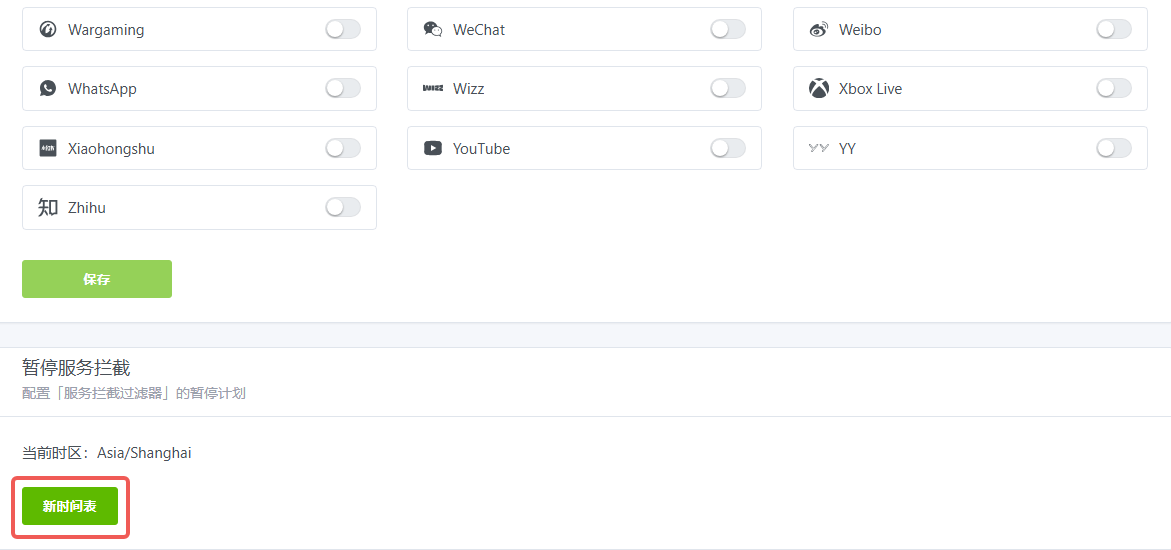
Navigate to Filters -> Blocked Services
Click the “Internet Schedule” option
Set allowed or restricted internet access time periods
Usage Recommendations
Set age-appropriate internet schedules for school children
Configure different policies for weekdays and weekends
Recommended to set unified bedtime restrictions
Important Notes
Changes take effect immediately
Schedule adjustments can be made anytime
Supports temporary restriction removal
4 - Public Services
Free public service guide: encrypted DNS access rules for basic ad-blocking and privacy protection, selection advice, and enabled subscription lists.
We provide free public services and have curated a set of widely-used domain lists.
Public Service Rules
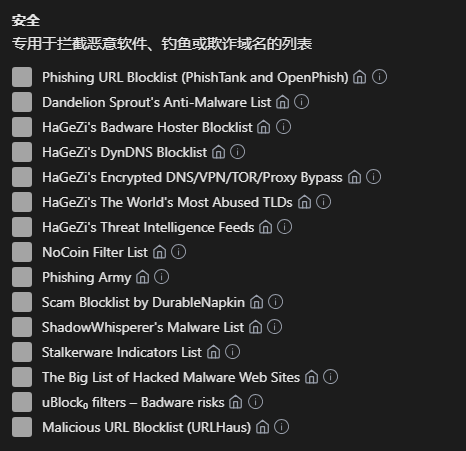
The public service employs balanced ad-blocking rules; false positives or misses may occur. The rule lists are:
Because the public service is intended for the general population, it cannot accommodate personalized needs. Some users complain that ad-blocking is insufficient, while others report that false positives prevent game logins. We apologize that the public service cannot satisfy everyone; content that some view as ads may be useful information to others. In such cases, we tend to prioritize users who consider it useful.
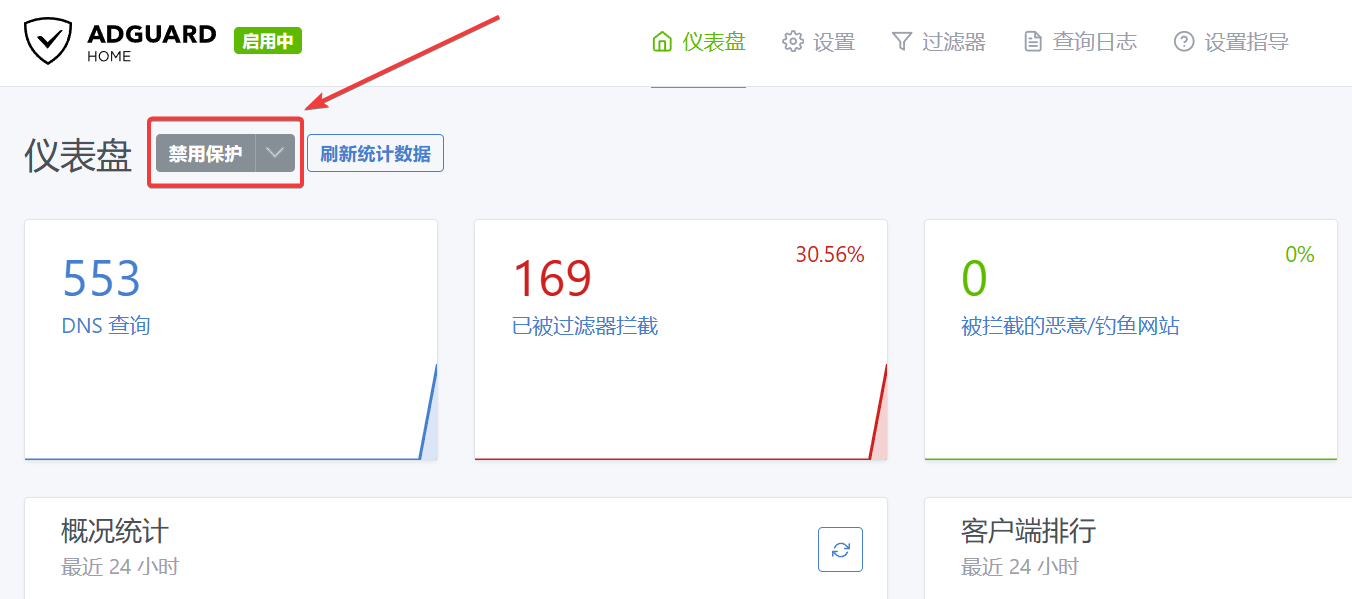
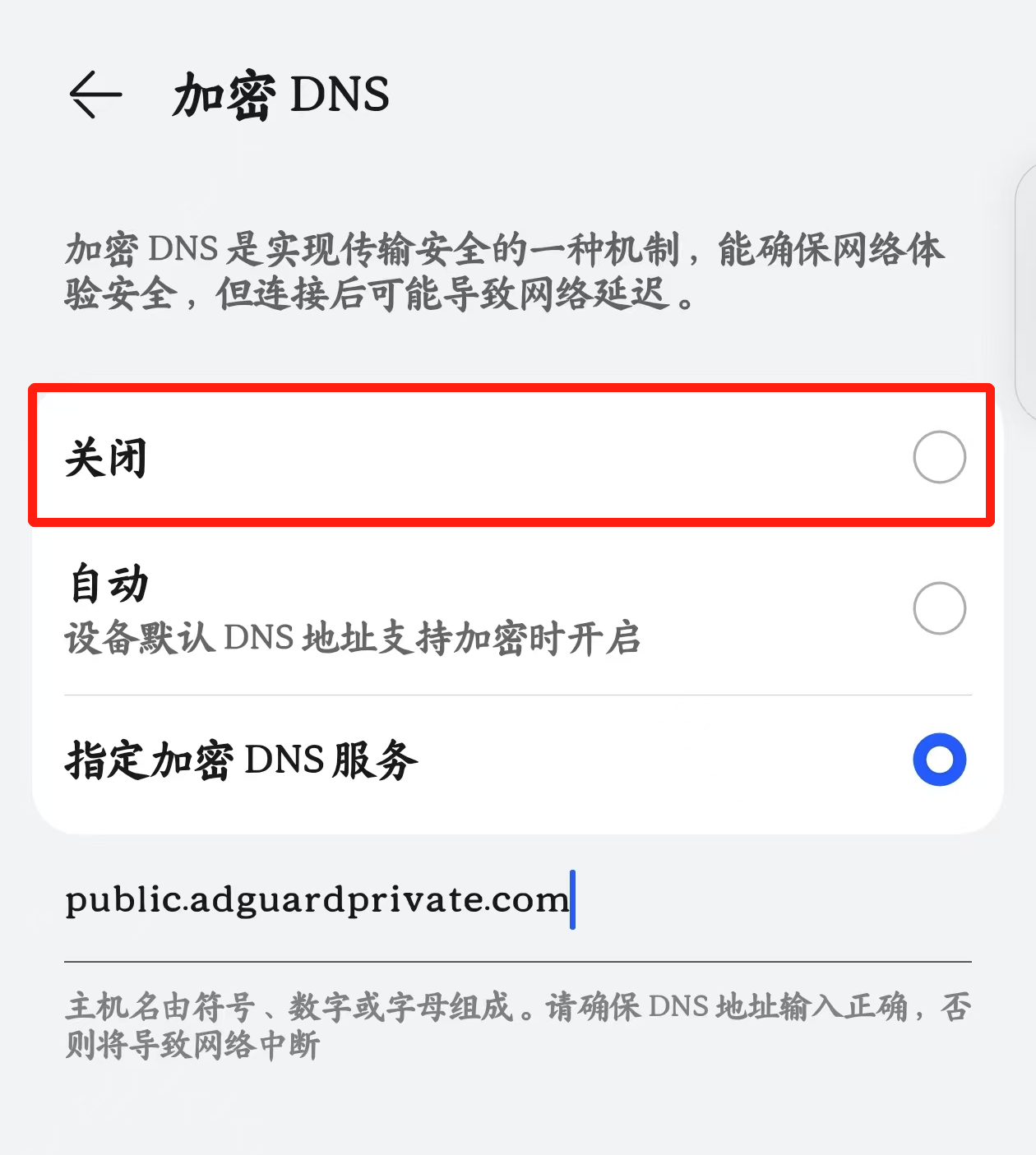
When a false positive prevents WeChat or Alipay mini-programs from loading, simply disable the phone’s encrypted DNS setting temporarily to access the required service. However, based on our operational experience, many users do not know what to do when a service fails to work properly, so we must consider non-technical users’ experience.
Users familiar with DNS who encounter false positives or insufficient blocking should consider purchasing a private service.
Private services offer access logs, blocking logs, statistics, custom rules, authoritative resolution, and more to meet individual needs.
For other common requests,
Need help?
Contact on WeChat
private6688 or
Send email
[email protected] Please describe your issue in detail, and we will respond as soon as possible.
Setup Instructions by Platform
Android
Android has natively supported DNS over TLS (DoT) since Android 9; phones released after 2019 are compatible. Enable it as follows:
Open Settings
Go to More connections
Open Private DNS
Choose Private DNS provider hostname and enter: public.adguardprivate.com
Self-hosted DNS can be implemented in many ways (e.g., AdGuard, dnsmasq, clash), but only native DoT has zero impact on phone performance. It requires no third-party apps, no permissions, no resources, and does not affect battery life. Therefore, native DoT encrypted DNS is recommended.
iPhone
iOS 14 and later natively support DNS over HTTPS (DoH) and DNS over TLS (DoT). Enable it as follows:
⚠️ Security Warning Exercise extreme caution when installing configuration profiles. The profiles provided on this site are solely for legitimate privacy protection and ad-blocking services. Do not install configuration profiles from unknown sources as this may compromise your device security.
Configuration Demo Video
4.3 - macOS
Detailed instructions on how to configure DNS encryption on macOS
macOS Big Sur and later natively support DNS over HTTPS (DoH) and DNS over TLS (DoT). You can enable encrypted DNS as follows:
Open the built-in Safari browser and download the configuration file: dot.mobileconfig
Open System Settings
Go to Privacy & Security
Select Profiles
Under “Downloaded,” choose public.adguardprivate.com DoT to install
Please note that this is an unconventional way to modify system settings. We generally advise iPhone users not to install configuration files from unknown sources unless you are certain of their origin. This site provides legitimate personal-privacy protection and ad-blocking services and will never perform any actions that are harmful or objectionable to users. This disclaimer is intended to remind you that, even if you trust me, you should not readily trust configuration files provided by other websites. I will cover the potential risks of modifying system DNS settings in this manner in another article.
The complete contents of the configuration file are shown below. You can copy the text and paste it into your iPhone’s settings, or simply click the link above to download the file.
<?xml version="1.0" encoding="UTF-8"?><!DOCTYPE plist PUBLIC "-//Apple//DTD PLIST 1.0//EN" "http://www.apple.com/DTDs/PropertyList-1.0.dtd"><plistversion="1.0"><dict><key>PayloadContent</key><array><dict><key>DNSSettings</key><dict><key>DNSProtocol</key><string>TLS</string><key>ServerName</key><string>public.adguardprivate.com</string></dict><key>PayloadDescription</key><string>Configures device to use NullPrivate</string><key>PayloadDisplayName</key><string>public.adguardprivate.com DoT</string><key>PayloadIdentifier</key><string>com.apple.dnsSettings.managed.11b4d48d-8e9b-4e15-b7c1-45cb1c564c99</string><key>PayloadType</key><string>com.apple.dnsSettings.managed</string><key>PayloadUUID</key><string>e9819f0c-250e-49b7-ad89-c0db078c72f0</string><key>PayloadVersion</key><integer>1</integer></dict></array><key>PayloadDescription</key><string>Adds NullPrivate to macOS Big Sur and iOS 14 or newer systems</string><key>PayloadDisplayName</key><string>public.adguardprivate.com DoT</string><key>PayloadIdentifier</key><string>e0b7d7db-e0d1-4bce-bcf4-8ada45d2f5a3</string><key>PayloadRemovalDisallowed</key><false/><key>PayloadType</key><string>Configuration</string><key>PayloadUUID</key><string>0404cb98-3621-4f97-9530-b18288633d40</string><key>PayloadVersion</key><integer>1</integer></dict></plist>
5 - Advanced Features
Advanced features tutorial: ECS/client subnets, quick response, rules and filter lists, device naming, and other advanced configurations and best practices.
Here we will introduce some advanced usage tips for private services.
5.1 - Blocked Application List
App-level blocking list: one-click ban of social/gaming apps with schedule support, region-based preset lists, helping minors avoid addiction and boosting productivity.
It is important not to confuse this with blacklists, which are usually used to block ads, privacy trackers, malware, etc. The Blocked Application List is for completely preventing the use of specified applications.
It is typically combined with a schedule to build personal habits and avoid addiction. Commonly used for minors’ habit formation—for example, prohibiting social media and games during study hours. It can also be used for adult self-discipline, such as banning social media and games during work hours.
This service provides pre-configured rules based on popular apps in each country. Because popular culture changes and companies evolve, these lists may become outdated, but we are committed to ongoing maintenance.
If you find that an app in the list is not fully blocked, or if you need to add a recently popular app, please contact us and we will handle it promptly.
Need help?
Contact on WeChat
private6688 or
Send email
[email protected] Please describe your issue in detail, and we will respond as soon as possible.
ECS (Extended Client Subnet) acceleration: pass subnet information upstream to improve CDN hit rates and enable closer resolution, delivering faster and more stable access.
NullPrivate supports ECS, delivering more precise resolution and optimizing your network experience.
What is ECS (Extended Client Subnet)?
ECS (Extended Client Subnet) is a DNS protocol extension that allows a DNS resolver (such as your NullPrivate server) to pass part of the client’s IP address information to the authoritative DNS server. This enables the authoritative server to provide more accurate DNS responses based on the client’s network location.
How ECS Works
Traditional DNS Query: Without ECS, the DNS resolver only sends its own IP address to the authoritative DNS server. This forces the authoritative server to make resolution decisions based on the resolver’s location (usually a data center), which can yield sub-optimal results.
ECS-enabled DNS Query: When ECS is enabled, the DNS resolver includes a portion of the client’s IP address (the subnet) in the DNS query. For example, if the client’s IP is 203.0.113.45, the resolver might send 203.0.113.0/24 as ECS information.
Authoritative Server Response: Upon receiving a query containing ECS information, the authoritative DNS server can use it to select the IP address best suited to the client—typically the server geographically closest to the client.
Benefits of ECS
Faster Response Times: By directing clients to the nearest server, ECS reduces latency and improves application responsiveness.
Enhanced User Experience: Faster response times create a smoother, more enjoyable online experience.
More Effective CDN Usage: Content Delivery Networks (CDNs) can leverage ECS to direct users to the optimal content server, boosting efficiency and lowering costs.
Bypass Local Resolver Limitations: Some local ISP DNS servers may have issues such as resolution errors or domain hijacking. ECS can bypass these limitations to obtain more accurate resolution results.
Why Use ECS with NullPrivate?
As a private DNS server, NullPrivate can be configured to use upstream DNS servers for domain resolution. With ECS enabled, NullPrivate can pass your client subnet information to those upstream servers, yielding more accurate resolution results.
5.3 - DDNS Dynamic Resolution
Use NullPrivate to implement convenient DDNS dynamic resolution service
What is DDNS?
DDNS (Dynamic DNS) allows you to bind a fixed domain name to a dynamic IP address, suitable for home broadband users accessing internal network devices such as NAS, smart home controllers, etc.
Feature Highlights
Easy to use: Only requires a single script to achieve automatic updates
Zero additional cost: No need to purchase a domain
High reliability: Built on NullPrivate’s DNS infrastructure
Fast propagation: DNS records take effect immediately after update, no DNS propagation wait required
Usage Guide
You can find the DDNS script download address under Filters->DNS Rewriting.
FAQ
How to verify if it’s working?
Check if resolution points correctly to your current IP address using the ping your-domain.name command.
Or log in to the service backend and view records under Filters->DNS Rewriting.
How to schedule automatic updates?
Windows Task Scheduler
Open Task Scheduler
Create Basic Task
Set execution frequency (recommended 15-30 minutes)
Select PowerShell as program location, enter full script command in parameters
Linux Cron Job
Add the following to crontab (executes every 15 minutes):
Keep your username and password secure to prevent leakage
Recommended to add update script to system scheduled tasks for automatic execution
If resolution doesn’t take effect promptly, check network connection and credential validity
5.4 - DNS Split-Horizon Configuration Guide
A detailed walkthrough on optimizing network access via DNS split-horizon, including domestic and overseas DNS server setup and rule configuration.
DNS Split-Horizon Overview
DNS split-horizon routes resolution requests for different domains to distinct DNS servers, greatly improving network access. A well-designed setup can:
Accelerate domain resolution
Increase website stability
Optimize cross-border access
Avoid DNS pollution
NullPrivate Split-Horizon Configuration
Basic Example
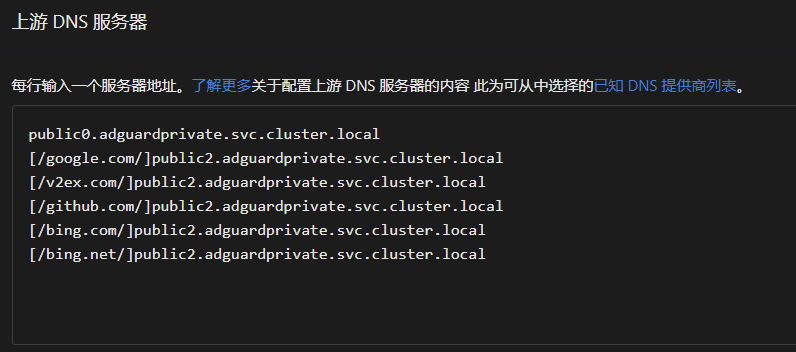
# Domestic DNS servers223.5.5.5 # Alibaba DNS2400:3200::1 # Alibaba DNS IPv6public0.adguardprivate.svc.cluster.local # Private DNS, mainland upstream# Overseas DNS serverstls://1.0.0.1 # Cloudflare DNStls://[2606:4700:4700::1001] # Cloudflare DNS IPv6public2.adguardprivate.svc.cluster.local # Private DNS, other upstream# Split-horizon rules[/google.com/bing.com/github.com/stackoverflow.com/]tls://1.0.0.1 public2.adguardprivate.svc.cluster.local[/cn/xhscdn.com/tencentclb.com/tencent-cloud.net/aliyun.com/alicdn.com/]223.5.5.5 2400:3200::1 public0.adguardprivate.svc.cluster.local
Domestic Carrier DNS Servers
China Telecom DNS Servers
Name
Primary DNS Server
Secondary DNS Server
Anhui CT
61.132.163.68
202.102.213.68
Beijing CT
219.142.76.3
219.141.140.10
Chongqing CT
61.128.192.68
61.128.128.68
Fujian CT
218.85.152.99
218.85.157.99
Gansu CT
202.100.64.68
61.178.0.93
Guangdong CT
202.96.128.86
202.96.128.166
Guangxi CT
202.103.225.68
202.103.224.68
Guizhou CT
202.98.192.67
202.98.198.167
Henan CT
222.88.88.88
222.85.85.85
Heilongjiang CT
219.147.198.230
219.147.198.242
Hubei CT
202.103.24.68
202.103.0.68
Hunan CT
222.246.129.80
59.51.78.211
Jiangsu CT
218.2.2.2
218.4.4.4
Jiangxi CT
202.101.224.69
202.101.226.68
Inner Mongolia CT
219.148.162.31
222.74.39.50
Shandong CT
219.146.1.66
219.147.1.66
Shaanxi CT
218.30.19.40
61.134.1.4
Shanghai CT
202.96.209.133
116.228.111.118
Sichuan CT
61.139.2.69
218.6.200.139
Tianjin CT
219.150.32.132
219.146.0.132
Yunnan CT
222.172.200.68
61.166.150.123
Zhejiang CT
202.101.172.35
61.153.177.196
Tibet CT
202.98.224.68
202.98.224.69
China Unicom DNS Servers
Name
Primary DNS Server
Secondary DNS Server
Beijing CU
123.123.123.123
123.123.123.124
Chongqing CU
221.5.203.98
221.7.92.98
Guangdong CU
210.21.196.6
221.5.88.88
Hebei CU
202.99.160.68
202.99.166.4
Henan CU
202.102.224.68
202.102.227.68
Heilongjiang CU
202.97.224.69
202.97.224.68
Jilin CU
202.98.0.68
202.98.5.68
Jiangsu CU
221.6.4.66
221.6.4.67
Inner Mongolia CU
202.99.224.68
202.99.224.8
Shandong CU
202.102.128.68
202.102.152.3
Shanxi CU
202.99.192.66
202.99.192.68
Shaanxi CU
221.11.1.67
221.11.1.68
Shanghai CU
210.22.70.3
210.22.84.3
Sichuan CU
119.6.6.6
124.161.87.155
Tianjin CU
202.99.104.68
202.99.96.68
Zhejiang CU
221.12.1.227
221.12.33.227
Liaoning CU
202.96.69.38
202.96.64.68
China Mobile DNS IPs
Name
Primary DNS Server
Secondary DNS Server
Beijing CM
221.130.33.60
221.130.33.52
Guangdong CM
211.136.192.6
211.139.136.68
Jiangsu CM
221.131.143.69
112.4.0.55
Anhui CM
211.138.180.2
211.138.180.3
Shandong CM
218.201.96.130
211.137.191.26
Public DNS IPs
Name
Primary DNS Server
Secondary DNS Server
114 DNS
114.114.114.114
114.114.115.115
CNNIC SDNS
1.2.4.8
210.2.4.8
Alibaba Public
223.5.5.5
223.6.6.6
DNSPod DNS+
119.29.29.29
119.29.29.29
Google DNS
8.8.8.8
8.8.4.4
Configuration Tips
Prefer geographically close DNS servers
Configure both IPv4 and IPv6 DNS
Set up backup DNS for critical domains
Update split-horizon rules regularly
Monitor DNS response times
Precautions
Record original DNS settings before changes
Avoid untrusted DNS servers
Periodically verify DNS resolution
Keep rule lists concise and effective
Proper DNS split-horizon configuration can significantly improve network access. Choose DNS servers and rules according to your actual needs.
Customize device identification names: distinguish endpoints via extended domain names/URL paths, accurately view “Client Rankings” and logs, and facilitate rule and schedule management.
If you directly use the service’s listening address, such as:
tls://xxxxxxxx.adguardprivate.com
https://xxxxxxxx.adguardprivate.com/dns-query
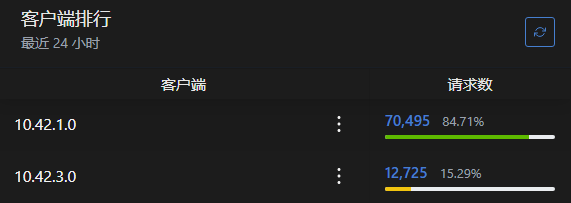
The IPs seen in the Client Rankings in the backend are the cluster IPs of the load balancer, which are meaningless to users and cannot distinguish between different devices.
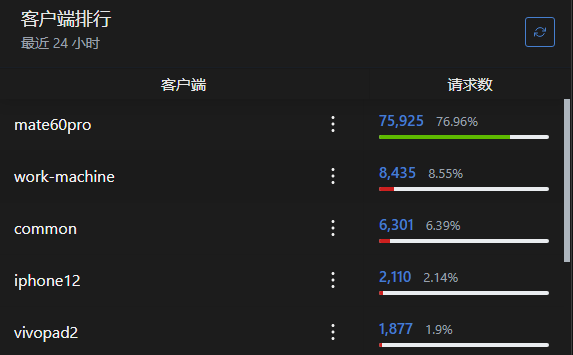
You can identify different devices by using extended domain names and adding URL paths.
For DoT, use the extended domain name method, e.g., tls://device1.xxxxxxxx.adguardprivate.com
For DoH, use the added URL path method, e.g., https://xxxxxxxx.adguardprivate.com/dns-query/device2
Note:
Android devices do not require entering the protocol prefix tls:// during setup; simply input device1.xxxxxxxx.adguardprivate.com
Apple devices follow setup instructions by entering a client ID and downloading a configuration file for setup, without manual input
All devices under personal service share the service’s query limit of 30 requests per second.
5.6 - Faster Request Response
Faster Request Response: Properly configure cache TTL, upstream mode, and region selection to reduce first-packet latency and retry rate, significantly improving perceived speed.
Paid users utilize AdGuard’s private service. The DNS request path is as follows:
The fastest response solution can be analyzed based on this path.
Local Cache Hit
The fastest response is a local cache hit. Since the local cache operates at memory level, it’s extremely fast—taking only a few microseconds.
This is controlled by the DNS response’s TTL (Time to Live) value, typically ranging from minutes to hours, indicating that query results remain valid during this period and don’t require re-querying.
You can set the minimum TTL value at Control Panel -> Settings -> DNS Settings -> DNS Cache Configuration -> Override Minimum TTL Value. Increasing this value extends cache duration, allowing the system to utilize local cache more frequently. The typical TTL value is 600 seconds.
However, since our service also includes filtering capabilities, if a required service is mistakenly blocked by ad-blocking rules, temporarily disabling encrypted DNS won’t immediately grant access because the local cached result has been modified by filtering rules. Therefore, setting it to 60 seconds is a safer value, ensuring that in rare cases users won’t wait too long after disabling encrypted DNS due to accidental blocking.
AdGuard DNS Servers
We currently use Alibaba Cloud servers located in Hangzhou, which can meet low-latency needs for most users in eastern China. As business grows, we will expand server coverage nationwide in the future.
Server Cache Hit
By default, each user is allocated 4MB of DNS cache, which experience shows is sufficient for household usage. Free modification of this setting may lead to forced service termination, so we’ve disabled user access to modify this setting.
Upstream DNS Servers
Using Alibaba Cloud services, we’ve selected Alibaba’s DNS service as the upstream provider, which typically returns results within milliseconds.
Users have three methods to request upstream DNS servers:
Load Balancing: Enabled by default, automatically selects the fastest server to return results.
Parallel Requests: Currently unrestricted in our service.
Fastest IP Address: Currently a meaningless setting; modification entry has been disabled.
Explanation why “Fastest IP Address” is meaningless: The truly fastest IP should be selected by the device actually accessing the service. When AdGuard operates in Hangzhou while the user is in Beijing, AdGuard might consider Hangzhou IPs fastest, but in reality Beijing-based services would be quicker for the user. Selecting Hangzhou IPs would actually increase latency. Therefore, we’ve disabled this setting modification. This setting might be useful in home networks but meaningless in public services.
Many factors affect network experience: server bandwidth, network congestion, server load, network quality, etc. Selecting the “fastest IP” doesn’t guarantee the fastest response—latency is just one factor among many. To prevent user misconfiguration from degrading service quality, we’ve disabled this setting.
Rule Filtering
The most common mode is blacklisting, where users can select from preset blacklists. Blacklist hits use hash algorithms—hit time remains O(1) regardless of rule volume, so users needn’t worry about performance degradation from large rule sets.
However, rules are stored in memory after computation. Each user’s service is limited to 300MB memory usage, sufficient for most needs. Excessively large rule sets may cause memory shortages, leading to repeated service restarts and interruptions.
We’ve temporarily disabled third-party rules to prevent users from importing oversized rule sets. Third-party rule support will be reinstated when better restriction methods become available.
Summary
To achieve faster request responses, users can:
Appropriately increase the minimum TTL value to improve local cache hit rate.
Set appropriate DNS cache size (preset value already configured).
Select geographically closest cities when creating services (pending business expansion).
Use load balancing for domestic needs; use parallel requests for overseas needs.
Use appropriate blacklist rules, avoiding oversized rule sets.
5.7 - Setting Up Trusted DNS Providers
When creating a paid service, it defaults to using faster domestic upstream services, including Alibaba’s IPv4, IPv6, and DoT services.
Some DNS providers may have resolution errors, resolving certain overseas websites to incorrect IP addresses, making them inaccessible. A common symptom is browsers reporting certificate errors.
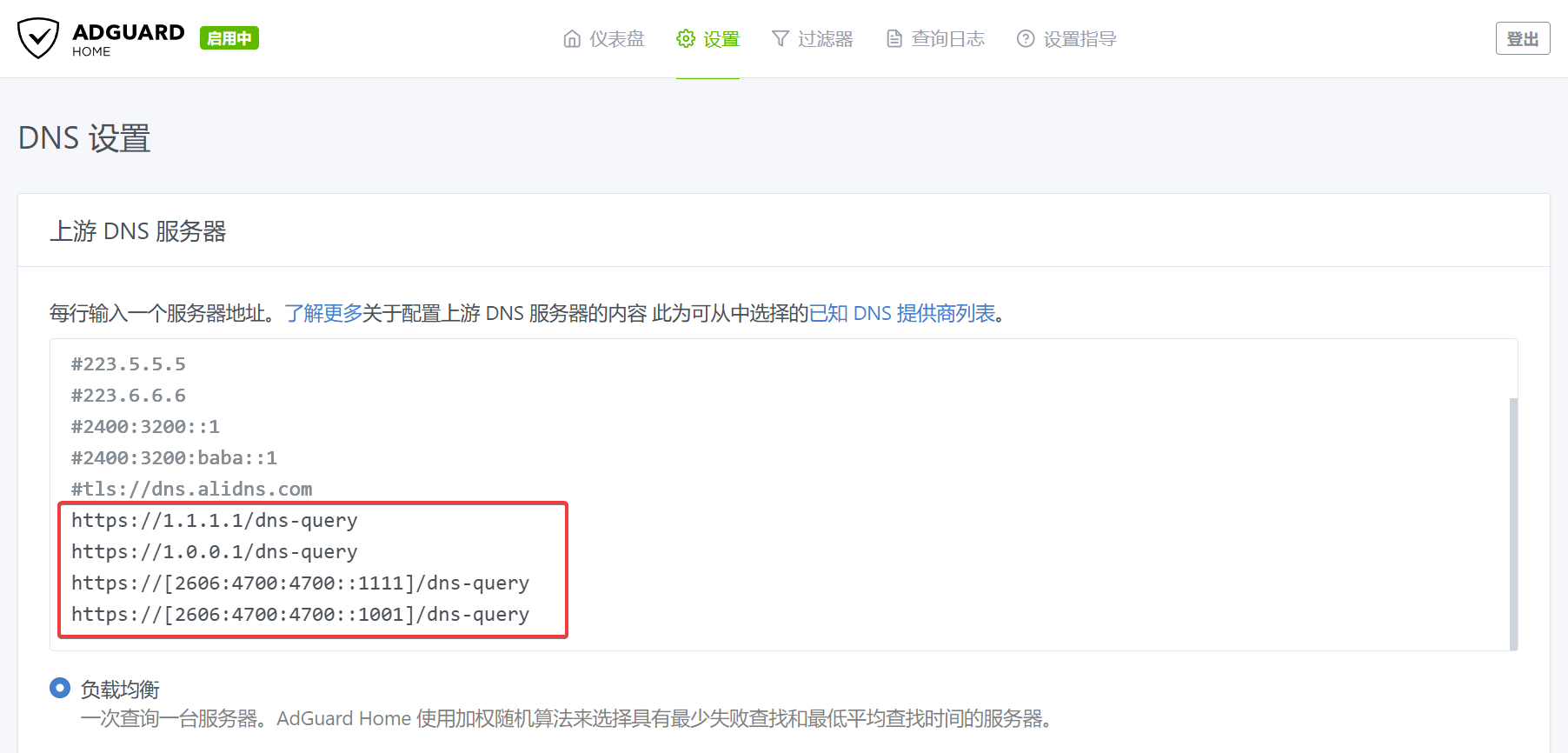
To avoid resolution errors, you can switch to upstream providers like Cloudflare. When using such services, ensure you’re using the DoH or DoT protocols to prevent hijacking.
Additionally, you need to disable domestic upstream services because they are geographically closer and faster, causing AdGuard to prioritize them.
Add a # before the corresponding service IP to disable that upstream service.
After configuration, Test Upstream to ensure the upstream server is available, then Apply.
However, using only overseas services may degrade the experience for domestic apps, as these apps typically resolve overseas domains to specific external servers with slower domestic access speeds.
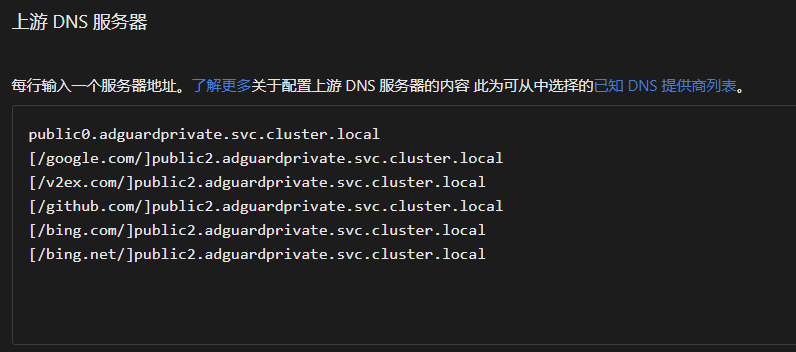
If you only need to avoid resolution errors for commonly used services, you can manually specify DNS addresses for misresolved domains while keeping other domains on default domestic upstream services.
In the AdGuard console, go to Settings -> DNS Settings -> Upstream DNS Servers. Add misresolved domains in the format [/example1.com/example2.com/]tls://1.0.0.1 to Custom DNS Servers, then click Save Settings.
public2.adguardprivate.svc.cluster.local is our internally provided error-free resolution service, using Cloudflare as upstream. Compared to users manually specifying overseas upstreams, it offers faster resolution speeds at the cost of minor delays in DNS updates. Users without professional needs can use our error-free resolution service.
To use external Cloudflare or Google resolution addresses, specify IPs with DoT/DoH. Examples:
Addresses prefixed with # are commented out, indicating they are currently blocked by firewalls and unavailable.
Our site fully supports IPv6, which is one of our key advantages. You can use IPv6 upstream addresses for more stable resolution speeds.
6 - Cyber Subtlety
“Cyber Subtlety” series: teaches you how to hide sensitive traces while browsing daily, reduce tracking risks, combine anti-fraud and anti-addiction advice, and enhance personal digital security.
6.1 - How to Prevent Personal Information Leaks and "Doxxing" Risks
This article provides practical guidance on preventing personal information leaks and dealing with “doxxing” risks, helping you raise cybersecurity awareness and protect your privacy.
Beware of Risks from Piecing Together Scattered Information
In the Internet age, personal information exists in fragmented form across various platforms and services. Many people believe that leaking small pieces of information is harmless. However, the online environment is not absolutely secure, and malicious actors can collect and combine these scattered bits to reconstruct a complete personal profile. Even a simple search engine can be used for data gathering.
Take a certain social platform as an example: while users share snippets of their lives, they may inadvertently expose personal details. Some users like to publicly discuss the meaning and usage scenarios of their passwords, which undoubtedly increases the risk of those passwords being cracked.
Social-engineering principles tell us that meaningful strings often appear repeatedly in multiple places. A unique username or an easy-to-remember password is likely reused across different platforms, making it a common vector for information leaks.
Reduce Account Linkage to Protect Your Identity
For ordinary netizens who have no need to build a personal brand, it is recommended to use randomly generated usernames and passwords to minimize the correlation between accounts on different platforms.
Note that merely using different credentials is not enough to eliminate account linkage. If identical or similar content is posted under accounts on different platforms, they can still be identified as belonging to the same person.
Common Types of Sensitive Information
Below are some common types of sensitive information that require extra care:
Passwords
Usernames
Avatars
Birthdays
Addresses
Phone numbers
Email addresses
QQ numbers
WeChat IDs
Personal websites
Geolocation data
Photos
Malicious actors often integrate leaked personal information from various sources using “social-engineering databases.” For instance, if two separate platform leaks contain the same phone number, it is highly probable that both records belong to the same individual.
Even if usernames and photo styles differ across platforms, they can still be linked via these databases to compile a comprehensive personal dossier.
This is not fear-mongering; it is a common application of social-engineering databases. The barrier to using such databases for information gathering and doxxing is low—even minors can master them easily.
Raise Cybersecurity Awareness to Safeguard Your Privacy
While the Internet brings people closer, it can also widen the gap between them. Social platforms provide spaces for communication, yet they can also make users feel more isolated.
In the online world, we long to express ourselves and find resonance, but we must also stay vigilant and protect our privacy.
There is no need to reveal every detail of your life to strangers online. Speak cautiously, act prudently, enjoy solitude, and improve yourself—only then can you navigate the digital realm with ease.
Recommendations:
Regularly review and update your passwords to ensure they are strong.
Avoid reusing the same username and password across different platforms.
Be careful when sharing photos or posts that contain personal information.
Use tools like NullPrivate to protect your DNS queries and prevent DNS leaks.
Stay informed about the latest cybersecurity trends to understand emerging threats and countermeasures.
6.2 - Guide to Protecting Personal Online Privacy
Introduces how to safeguard personal privacy during everyday online activities, reduce your digital footprint, avoid personalized ad tracking, and prevent the leakage of private information.
Why Protect Online Privacy?
In the digital age, every online action we take can leave traces:
Browsing history is tracked
Personal preferences are analyzed
Location data is collected
Social relationships are mapped
Basic Protective Measures
1. Browser Configuration
Use private/incognito mode
Disable third-party cookies
Enable “Do Not Track”
Regularly clear browsing data
2. Search Engine Choices
Use anonymous search engines (e.g., DuckDuckGo)
Avoid searching sensitive content while logged in
Cross-verify with multiple search engines
3. DNS Encryption Protection
Enable DNS-over-HTTPS
Use private DNS services
Avoid default DNS servers
Advanced Protection Strategies
1. Network Access Protection
Use trusted services
Enable HTTPS-Only mode
Avoid public Wi-Fi
2. Ad-Tracking Protection
Install ad blockers
Use content filters
Turn off personalized ad options
3. Social Media Privacy
Review privacy settings
Limit sharing of personal information
Disable location services
Be cautious with third-party logins
Daily Usage Recommendations
Reduce Your Digital Footprint
Use temporary email services
Avoid registering with real names
Use different passwords on different platforms
Regularly check authorized applications
Prevent Privacy Leaks
Use a password manager
Enable two-factor authentication
Encrypt important files
Be careful when installing new apps
Points to Note
Use privacy-protection tools appropriately
Comply with local laws and regulations
Keep software updated promptly
Cultivate privacy-protection awareness
Complete anonymity is hard to achieve, but the measures above can significantly raise your level of personal privacy protection. Choose the protections that suit you and strike a balance between convenience and security.
6.3 - Youth Cyber Protection Guide
Through intelligent management and security protection, create a healthy online environment for teenagers and help them establish good internet habits.
Challenges in Contemporary Youth’s Online Environment
In the digital age, teenagers face unprecedented cyber challenges:
Massive information with mixed quality
Limited ability to identify online risks
Susceptibility to inappropriate content
Lack of self-management awareness
Intelligent Protection Solutions
1. Application Access Management
Features:
Precise control over accessible applications
Prevent installation of inappropriate software
Protect personal information security
2. Time Management System
Functions:
Set reasonable usage periods
Prevent internet addiction
Cultivate healthy daily routines
3. Behavior Monitoring & Guidance
Access Record Analysis
Uses:
Understand online behavior patterns
Identify potential risks promptly
Provide targeted guidance and communication
Smart Blocking Settings
Customizable:
Content rating filters
Personalized protection rules
Dynamic policy adjustments
Parental Guidance Recommendations
Beyond protective measures, quality family education is more crucial:
Maintain open dialogues about internet usage
Cultivate independent thinking and judgment
Establish trusting communication mechanisms
Gradually relax controls as appropriate
Technical measures are supplementary tools, while education and guidance remain fundamental. Apply management tools reasonably while focusing on developing youth’s digital literacy and self-management capabilities.
6.4 - Protecting the Elderly from Online Scams
A cybersecurity guide for the elderly population, effectively preventing online scams through private service setup and AdGuard protection.
Online Risks Faced by the Elderly
In today’s society, the elderly face increasingly severe cybersecurity threats. The following characteristics make them high-risk targets for online scams:
Insufficient familiarity with smartphone operations
Lack of awareness and preventive measures against online scams
Limited exposure to cybersecurity-related information
Tendency to trust unverified software download links
Technical Protection Solutions
AdGuard Security Protection
AdGuard provides professional malware blocking functionality:
This solution offers the following advantages:
Cloud-based operation, no need for additional app installation
Zero system resource consumption
Simple configuration and resistant to accidental misoperation
Automatic continuous protection
Practical Results
After one year of implementation, we observed significant improvements:
Drastic reduction in “phone cleanup” assistance requests
Enhanced daily user experience
Decreased mobile device usage difficulties
Comprehensive Protection Strategy
While technical measures are important, comprehensive protection also requires:
Regular companionship and communication to understand usage difficulties
Patient explanation of basic cybersecurity knowledge
Maintaining vigilance to promptly identify potential threats
Technology is a tool, but care is fundamental. Regular companionship and patient guidance remain the best ways to protect the elderly from online risks.
6.5 - How to Deal with Enterprise Network Monitoring
As technology evolves, enterprise network monitoring has shifted from traditional physical surveillance to digital monitoring. This article explores common modern enterprise network monitoring methods and provides legal privacy-protection advice.
Evolution of Enterprise Network Monitoring
Modern enterprises have transitioned from traditional physical monitoring (such as cameras and on-site patrols) to more sophisticated digital surveillance systems. This shift makes monitoring more covert and cost-effective.
Common Network Monitoring Methods
A core method of enterprise network monitoring is tracking via DNS servers. The specific implementations include:
Deploying dedicated DNS servers within the corporate network
Enforcing corporate DNS through DHCP services
Establishing a mapping between IP addresses and workstation locations
Technical Principles of Monitoring
Even with widespread HTTPS adoption, DNS queries are still transmitted in plaintext. This means:
All domain-resolution requests are logged
While the specific content accessed cannot be seen, the visited domain names are known
Combined with timestamps, this allows analysis of employees’ browsing behavior patterns
Personal Privacy-Protection Solutions
To reasonably protect personal privacy, consider the following options:
Use your personal mobile network
Configure a private DNS service
Employ a secure VPN service
Please note: When implementing any privacy-protection measures, comply with relevant laws, regulations, and corporate policies.
7 - Privacy Policy
“NullPrivate” Privacy Policy
NullPrivate does not collect any information from users.
NullPrivate will not share any information about users with third parties.
NullPrivate provides services using randomly generated usernames and passwords; only the payment order number is linked to the username, and the payment order number does not involve personal information.
When initiating inquiries via WeChat or email, NullPrivate will learn contact details such as WeChat ID or email address.
Contact details are used solely for service inquiries; NullPrivate will not proactively send any promotional information to the obtained contact details.
NullPrivate uses tools like Google Analytics for official website traffic statistics, but does not collect any personal information.
When diagnosing user issues, NullPrivate will review the runtime logs of the user service, but does not collect any personal information.
8 - Terms of Service
NullPrivate Service Usage Terms
I. Service Content
NullPrivate provides DNS-based ad blocking and privacy-protection SaaS services.
Services are divided into Trial (time-limited / quota-limited) and Paid versions; see product documentation for functional differences.
We reserve the right to adjust service features as technology evolves.
II. Account and Registration
No real-name information is required for the Trial version; use random credentials to experience the service.
Paid versions must complete order verification via the payment platform.
Transferring or sharing account credentials is prohibited.
III. Payment and Refunds
The Trial version is a time-limited offer, and prices may change at any time.
Paid versions use a prepaid model. No refunds are currently provided.
If service interruption exceeds 24 hours due to force majeure, you may apply for service-time compensation.
IV. Privacy Protection
We follow the data-processing principles described in the Privacy Policy.
Service logs are retained for no more than 30 days and are used only for troubleshooting.
All configuration data is transmitted via TLS encryption.
V. User Responsibilities
You must not use the service for any illegal activities.
Reverse engineering or cracking service protocols is prohibited.
Report any security vulnerabilities to us.
VI. Disclaimer
We do not guarantee completely uninterrupted or error-free service.
We will not be liable for service issues arising from:
User equipment or network failure
Force majeure (natural disasters, policy changes, etc.)
Third-party service (payment platforms, DNS providers, etc.) failure
VII. Amendments
Significant changes will be announced on the official website at least 30 days in advance.
Continued use of the service constitutes acceptance of the revised terms.
Last Updated: 29 November 2024 Effective Date: 1 December 2024
Understand networking fundamentals through vivid metaphors
📚 Reading Guide
To make networking knowledge easier to grasp, this tutorial uses plenty of everyday metaphors and analogies.
Our goal is for everyone to master networking basics effortlessly, regardless of technical background.
While these metaphors may not be perfectly rigorous, they will help you quickly build a foundational understanding of networking concepts.
Introduction to Networking Basics
In this tutorial, we’ll explain networking fundamentals through vivid metaphors and analogies. Our goal is for everyone to master these concepts effortlessly, regardless of technical background. While these metaphors may not be perfectly rigorous, they will help you quickly build a foundational understanding of networking concepts.
Unlike precise technical terms, this section uses plain language so non-technical readers can understand the basics of networking.
We’ll employ many fitting—or sometimes unfitting—metaphors and analogies, aiming to let readers grasp networking concepts quickly.
9.1 - What is DNS
DNS (Domain Name System) is one of the fundamental infrastructures of the internet. This article introduces the basic concepts and working principles of DNS.
Essentially, the DNS service is like a Xinhua Dictionary. By querying this dictionary, we can find the IP address corresponding to a domain name.
Introduction to DNS
DNS (Domain Name System) is one of the fundamental infrastructures of the internet. Like a Xinhua Dictionary, it is responsible for translating human-readable domain names into computer-understandable IP addresses.
How DNS Works
When you enter a website address in your browser:
The browser first checks local cache
If not found, it queries a DNS server
The DNS server returns the corresponding IP address
The browser uses this IP address to access the target website
Key Concepts
Domain Name: A human-readable website address, such as www.nullprivate.com
URL (Uniform Resource Locator): A complete web address containing protocol, domain name, and path, such as https://www.nullprivate.com
IP Address: A numeric identifier for network devices, such as 1.1.1.1
DNS Server: Computers that provide domain name resolution services
Web Hosting: Storing website files on servers to make them accessible via the internet
9.2 - NullPrivate Fundamentals
NullPrivate effectively blocks ads, trackers, and malicious websites through DNS-level interception
Overview of How It Works
NullPrivate protects your network security and privacy through DNS-level interception. It acts like an intelligent gatekeeper, screening all domain requests:
✅ Safe websites: Normal access
❌ Ad domains: Blocked
❌ Trackers: Blocked
❌ Malicious websites: Blocked
Interception Flow Diagram
Key Features
DNS-Level Blocking: Intercepts before requests occur, more efficient
No Plugin Installation Required: Network-level protection effective for all devices
Low Resource Consumption: Only processes DNS requests, minimal impact on device performance
Full Device Coverage: Configure once, protect all connected devices
9.3 - How DNS Affects Your Internet Experience
DNS is the entry point for almost all network requests. Resolving a domain name typically takes only tens of milliseconds, but these milliseconds determine which server subsequent connections will point to, whether CDN nodes are hit nearby, and whether they will be hijacked by ISPs or observed by certain intermediate nodes. This article targets ordinary netizens, using continuous narrative to explain the relationship between DNS and internet experience.
How DNS Affects Your Internet Experience
When we open a webpage, stream a video, or click an in-app link, the first hop almost always lands on DNS. It acts like a phonebook for the internet world, translating human-friendly domain names into machine-understandable IP addresses. Many people attribute “slow webpages, inability to open, intermittent issues” to “poor network speed,” but a significant portion of experience fluctuations relate to DNS resolution success rate, latency, cache hit rate, and privacy policies. Understanding how DNS works, its exposure points in the network chain, and available protection strategies can help us break down “slowness and instability” into controllable factors.
Background and Problem Overview
DNS is the entry point for almost all network requests. Resolving a domain name typically takes only tens of milliseconds, but these milliseconds determine which server subsequent connections will point to, whether CDN nodes are hit nearby, and whether they will be hijacked by ISPs or observed by certain intermediate nodes. The experience differences between home, cellular, and public Wi-Fi networks often stem from variations in resolver cache quality, packet loss rates, and policy differences among resolvers. This article targets ordinary netizens, using continuous narrative to explain the relationship between DNS and internet experience, focusing on principles and trade-offs rather than specific deployment steps or evaluation conclusions.
Basics and Terminology
After a browser or application initiates a resolution request, it typically first queries the system’s local resolver, which then recursively queries root, TLD, and authoritative servers layer by layer, ultimately obtaining an answer with TTL. If local or network-side cache hits, external queries can be skipped, significantly reducing latency; if cache misses or expires, the full recursive process must be completed. The following diagram uses a simplified flow to show the resolution path, with animations emphasizing data flow rather than actual timing sequence.
flowchart TB
  C[Client] e1@--> L[Local Resolver]
  L e2@--> R[Recursive Resolver]
  R e3@--> Root[Root Server]
  Root e3r@--> R
  R e4@--> TLD[TLD Server]
  TLD e4r@--> R
  R e5@--> Auth[Authoritative Server]
  Auth e5r@--> R
  R e6@--> L
  L e7@--> C

  %% Fill color settings
  style C fill:#e1f5fe,stroke:#01579b,stroke-width:2px
  style L fill:#e8f5e8,stroke:#1b5e20,stroke-width:2px
  style R fill:#fff3e0,stroke:#e65100,stroke-width:2px
  style Root fill:#f3e5f5,stroke:#4a148c,stroke-width:2px
  style TLD fill:#fce4ec,stroke:#880e4f,stroke-width:2px
  style Auth fill:#e0f2f1,stroke:#004d40,stroke-width:2px

  %% Animation rhythm settings (Mermaid v11)
  e1@{ animation: fast }
  e2@{ animation: slow }
  e3@{ animation: slow }
  e3r@{ animation: slow }
  e4@{ animation: slow }
  e4r@{ animation: slow }
  e5@{ animation: fast }
  e5r@{ animation: fast }
  e6@{ animation: slow }
  e7@{ animation: fast }
TTL is the “shelf life” of each record. Within the TTL validity period, recursive resolvers can directly return cached answers to clients, contributing more to the perception of “speed and stability” than we intuitively estimate. On the other hand, how resolvers handle parallel IPv4 and IPv6 requests, whether ECS extensions are enabled, and whether negative caching is implemented for failed queries can indirectly affect your connection direction and first-packet time.
Privacy Threats and Motivations
Traditional plaintext DNS exposes metadata about “which domain you want to access” on the network path. This information leaves traces at local networks, access ISPs, and public resolvers, even if content is encrypted via HTTPS. For ordinary users, risks come more from “passive observation and profiling” than direct content leakage: long-term query sequences can infer your interests, lifestyle patterns, and device types. Scenarios like public Wi-Fi, shared hotspots, and international roaming involve more observable points on the path, with more common fluctuations and failures.
flowchart TB
  C[Client] e1@--> Net[Local Network & Router]
  Net e2@--> ISP[Access ISP Network]
  ISP e3@--> Res[Public Recursive Resolver]
  Res e4@--> Auth[Authoritative Server]

  %% Fill color settings
  style C fill:#e1f5fe,stroke:#01579b,stroke-width:2px
  style Net fill:#ffe8e8,stroke:#cc0000,stroke-width:2px
  style ISP fill:#ffe8e8,stroke:#cc0000,stroke-width:2px
  style Res fill:#ffe8e8,stroke:#cc0000,stroke-width:2px
  style Auth fill:#ffe8e8,stroke:#cc0000,stroke-width:2px

  %% Exposure point highlighting
  classDef risk fill:#ffe8e8,stroke:#cc0000,stroke-width:2px,color:#000
  class Net,ISP,Res,Auth risk

  %% Animation
  e1@{ animation: fast }
  e2@{ animation: slow }
  e3@{ animation: slow }
  e4@{ animation: fast }
It’s important to emphasize that privacy protection doesn’t necessarily equate to “faster.” Encryption and encapsulation introduce handshakes and negotiations, but high-quality recursive resolvers may actually be faster through better cache hits and lower packet loss. Real-world experience quality depends on the combined effects of your network, resolver quality, and target site deployment.
Protection Strategies and Principles
Encrypted DNS wraps “which domain you’re asking about” into encrypted tunnels, reducing opportunities for eavesdropping and tampering. Common methods include TLS-based DoT, HTTPS-based DoH, and QUIC-based DoQ. They all reuse mature transport layer security mechanisms, with differences mainly in ports and multiplexing models. Regardless of the method, clients typically still initiate queries to the local resolver stack first, then use encrypted tunnels to send requests to upstream resolvers. The following diagram illustrates this encapsulation and return process.
flowchart LR
  U[Client] e1@--> S[DoH Stack]
  S e2@--> R[DoH Server]
  R e3@-->|200 OK + DNS Response| S
  S e4@--> U

  %% Fill color settings
  style U fill:#e1f5fe,stroke:#01579b,stroke-width:2px
  style S fill:#e8f5e8,stroke:#1b5e20,stroke-width:2px
  style R fill:#fff3e0,stroke:#e65100,stroke-width:2px

  e1@{ animation: fast }
  e2@{ animation: slow }
  e3@{ animation: fast }
  e4@{ animation: fast }
Beyond encryption, resolver-side QNAME minimization reduces query granularity exposed to upstream, DNSSEC provides record integrity verification, and ECS controls CDN proximity and hit rates. For end users, the actual perceptible differences are “whether it’s more stable,” “whether it’s easier to hit nearby nodes,” and “whether there’s less hijacking.”
Implementation Path and Considerations
From a user perspective, systems and routers often have built-in resolvers or forwarders, and many public services offer built-in DoH switches at the mobile OS and browser levels. Choosing a trustworthy recursive resolver and appropriate encryption method usually covers most needs. Note that some enterprise or campus networks may have policy restrictions on encrypted DNS, and certain security products might intercept or redirect DNS traffic; in these environments, prioritize connectivity and compliance before considering privacy and performance. For overseas site access, the resolver’s geographical strategy and CDN deployment layout are equally important—incorrect proximity strategies may route you to transcontinental nodes, resulting in a “half-second lag” perception.
Risks and Migration
Any switch should preserve a rollback path. For personal devices, first enable encrypted DNS on a single device and observe for a week, paying attention to frequently problematic apps and sites. For home gateways, consider grayscale rollout to a few devices, keeping backup resolvers and enabling health checks when necessary. If the network has internal domains or split DNS, confirm compatibility of resolution scope and search domains before switching to avoid resolution failures and accidental leaks.
Scenario-based Recommendations
On cellular networks and public Wi-Fi, prioritizing stable public resolvers with DoH or DoT enabled often provides both more stable and cleaner resolution. For home broadband, cache hits and low packet loss are more important—quality public resolvers or local gateway caching can deliver the “instant open” smoothness. When accessing cross-border content, the resolver’s geographical strategy determines where you’ll be routed. If certain sites are “connectable but very slow,” try changing resolvers or disabling ECS. For families needing parental controls and traffic splitting, choosing resolvers with classification policies and transparent logging is more practical.
FAQ and References
Common questions include “Is encrypted DNS always faster?”, “Why do different resolvers return different IPs?”, and “Will changing resolvers affect security software?” There are no one-size-fits-all answers—they depend on link quality, resolver implementation, and site access policies. Further reading can refer to relevant IETF RFCs, mainstream browser and OS documentation, and trusted network infrastructure blogs.
9.4 - Home Setup
A step-by-step guide to building the NullPrivate network ad-blocking service at home
Setting Up NullPrivate at Home
NullPrivate is an enhanced fork of AdGuard Home, purpose-built for superior network-level ad blocking and privacy protection. This tutorial walks you through installing and configuring NullPrivate on your home network.
Project Overview
NullPrivate is an open-source fork of AdGuard Home that offers both SaaS hosting and a rich set of extra features, all aimed at delivering a better DNS resolution and network-filtering experience.
Key Features
Original Features
Network-wide ad blocking: Block ads and trackers across the entire network
Custom filtering rules: Add personalized blocklists and allowlists
Encrypted DNS support: DNS-over-HTTPS, DNS-over-TLS, and DNSCrypt
You should now have a working NullPrivate instance at home, giving you a cleaner, more private internet experience. NullPrivate’s rich feature set and flexible configuration options make it easy to tailor the service to your exact needs.
Thank you for choosing NullPrivate! We are always committed to providing you with the best service:
Feel free to share your experience and suggestions with us at any time
We put privacy protection first
No registration required; we do not collect phone numbers or email addresses
No marketing interruptions of any kind
Need help?
Contact on WeChat
private6688 or
Send email
[email protected] Please describe your issue in detail, and we will respond as soon as possible.
10.1 - How to Purchase and Use
Purchase and Usage Guide: Choose a plan, complete payment, activate dedicated encrypted DNS (DoT/DoH), and quick configuration paths across platforms.
Purchase and Usage
10.2 - iOS Device Reset Settings
This article explains how to reset DNS settings on iOS devices
If you encounter false blocking issues on iOS devices, you can restore original DNS settings through the following two methods.
Option 1: Temporarily Disable DNS Encryption
This method is suitable for temporarily testing whether issues are caused by DNS settings:
Open the Settings app
Go to General > VPN & Device Management
Find the DNS option under Access Restrictions & Proxy
Select Automatic to temporarily restore system default settings
Option 2: Complete Configuration Removal
To completely remove DNS encryption settings:
Open the Settings app
Go to General > VPN & Device Management
Find public.adguardprivate.com DoT under Configuration Profiles
Tap Remove Profile and confirm
If you decide to permanently stop using NullPrivate, it must mean our service has caused you inconvenience. We sincerely apologize for any inconvenience caused. Our public service uses popular blocking rules. Due to limited resources, we cannot track all cases of under-blocking or over-blocking for every app. If you wish to customize rules for personalized needs, consider purchasing private service. Our private service offers dedicated solutions at exceptional value to meet various requirements.
Configuration Demo
10.3 - How to Handle False Blocking
This guide explains how to handle false blocking issues, including temporarily disabling protection, adding services to the whitelist, and temporarily suspending services.
Some services are considered necessary by some users but viewed as personal information collection or advertising by others. For example, WeChat and Alipay may contain small programs that mix services with ads, making them unusable. Payment redirects such as parking lots or vending machines may also fail to function properly.
If strict blocking rules are set, these services may be blocked, causing service disruptions.
Temporarily Disable Protection
If you need an urgent, temporary solution, you can resolve the issue by temporarily disabling protection, which typically takes effect within 10 seconds.
Add Service to Whitelist
For services used long-term, you can add them to the whitelist to prevent future blocking. This usually takes effect within 10 seconds.
Temporarily Suspend Settings
Public service users can resolve the issue by temporarily suspending the service, which typically takes effect within 60 seconds.
10.4 - After-Sales Service Guide
Learn about the after-sales support options for “NingPing,” including technical consultation and troubleshooting services.
Service Features
We adopt a no-registration design to protect user privacy:
No account registration required
No personal information collected
Service credentials provided immediately after payment
This article explains solutions when encountering access issues with mini programs, providing three approaches: temporarily disabling protection, adding services to whitelist, and temporarily deactivating settings.
If your blocking rules are set too strictly, they may intercept some legitimate services, causing operational exceptions.
Temporarily Disable Protection
If you need an urgent, temporary solution, you can resolve it by temporarily disabling protection, which typically takes effect within 10 seconds.
Add Service to Whitelist
For services used long-term, you can add them to the whitelist to prevent future interception, which typically takes effect within 10 seconds.
Temporarily Disable Settings
Public service users can resolve issues by temporarily deactivating the service, which typically takes effect within 60 seconds.
10.6 - Slow Access to Some Websites
Analysis and solutions for slow access to certain websites when using NullPrivate DNS, mainly related to ECS (Extended Client Subnet) support
Slow Access to Some Video Sites
If you experience slow access to certain websites while using NullPrivate, it may be due to the following reasons:
ECS Support:
NullPrivate’s free tier does not support ECS (Extended Client Subnet). ECS is a DNS protocol extension that allows DNS servers to provide more accurate responses based on the client’s network location. Many CDNs (Content Delivery Networks) use ECS to direct users to the nearest server, thereby improving speed. The free servers are located in Shanghai and Hangzhou.
Impact:
Slower Speeds: Without ECS, NullPrivate may be unable to direct you to the optimal CDN server, resulting in slower speeds.
Inaccurate Geolocation: You may be routed to a server far from your actual location, increasing latency.
Solutions:
Upgrade to Paid Plan: NullPrivate’s paid plans support ECS, which can resolve this issue and improve speed.
Use Another DNS Server: You can try another DNS server that supports ECS.