Here we will introduce some advanced usage tips for private services.
This is the multi-page printable view of this section. Click here to print.
Advanced Features
Advanced features tutorial: ECS/client subnets, quick response, rules and filter lists, device naming, and other advanced configurations and best practices.
- 1: Blocked Application List
- 2: ECS Boosts CDN Access Speed
- 3: DDNS Dynamic Resolution
- 4: DNS Split-Horizon Configuration Guide
- 5: Using Custom Device Names
- 6: Faster Request Response
- 7: Setting Up Trusted DNS Providers
1 - Blocked Application List
App-level blocking list: one-click ban of social/gaming apps with schedule support, region-based preset lists, helping minors avoid addiction and boosting productivity.
It is important not to confuse this with blacklists, which are usually used to block ads, privacy trackers, malware, etc. The Blocked Application List is for completely preventing the use of specified applications.
It is typically combined with a schedule to build personal habits and avoid addiction. Commonly used for minors’ habit formation—for example, prohibiting social media and games during study hours. It can also be used for adult self-discipline, such as banning social media and games during work hours.
This service provides pre-configured rules based on popular apps in each country. Because popular culture changes and companies evolve, these lists may become outdated, but we are committed to ongoing maintenance.
If you find that an app in the list is not fully blocked, or if you need to add a recently popular app, please contact us and we will handle it promptly.
Need help?
Contact on WeChat
private6688
or
Send email
[email protected]
Please describe your issue in detail, and we will respond as soon as possible.
| Country/Region | Application List |
|---|---|
| Global | Global Application List |
| Mainland China | Mainland China Application List |
2 - ECS Boosts CDN Access Speed
ECS (Extended Client Subnet) acceleration: pass subnet information upstream to improve CDN hit rates and enable closer resolution, delivering faster and more stable access.
NullPrivate supports ECS, delivering more precise resolution and optimizing your network experience.
What is ECS (Extended Client Subnet)?
ECS (Extended Client Subnet) is a DNS protocol extension that allows a DNS resolver (such as your NullPrivate server) to pass part of the client’s IP address information to the authoritative DNS server. This enables the authoritative server to provide more accurate DNS responses based on the client’s network location.
How ECS Works
Traditional DNS Query: Without ECS, the DNS resolver only sends its own IP address to the authoritative DNS server. This forces the authoritative server to make resolution decisions based on the resolver’s location (usually a data center), which can yield sub-optimal results.
ECS-enabled DNS Query: When ECS is enabled, the DNS resolver includes a portion of the client’s IP address (the subnet) in the DNS query. For example, if the client’s IP is
203.0.113.45, the resolver might send203.0.113.0/24as ECS information.Authoritative Server Response: Upon receiving a query containing ECS information, the authoritative DNS server can use it to select the IP address best suited to the client—typically the server geographically closest to the client.
Benefits of ECS
- Faster Response Times: By directing clients to the nearest server, ECS reduces latency and improves application responsiveness.
- Enhanced User Experience: Faster response times create a smoother, more enjoyable online experience.
- More Effective CDN Usage: Content Delivery Networks (CDNs) can leverage ECS to direct users to the optimal content server, boosting efficiency and lowering costs.
- Bypass Local Resolver Limitations: Some local ISP DNS servers may have issues such as resolution errors or domain hijacking. ECS can bypass these limitations to obtain more accurate resolution results.
Why Use ECS with NullPrivate?
As a private DNS server, NullPrivate can be configured to use upstream DNS servers for domain resolution. With ECS enabled, NullPrivate can pass your client subnet information to those upstream servers, yielding more accurate resolution results.
3 - DDNS Dynamic Resolution
Use NullPrivate to implement convenient DDNS dynamic resolution service
What is DDNS?
DDNS (Dynamic DNS) allows you to bind a fixed domain name to a dynamic IP address, suitable for home broadband users accessing internal network devices such as NAS, smart home controllers, etc.
Feature Highlights
- Easy to use: Only requires a single script to achieve automatic updates
- Zero additional cost: No need to purchase a domain
- High reliability: Built on NullPrivate’s DNS infrastructure
- Fast propagation: DNS records take effect immediately after update, no DNS propagation wait required
Usage Guide

You can find the DDNS script download address under Filters->DNS Rewriting.
FAQ
How to verify if it’s working?
Check if resolution points correctly to your current IP address using the ping your-domain.name command.
Or log in to the service backend and view records under Filters->DNS Rewriting.
How to schedule automatic updates?
Windows Task Scheduler
- Open Task Scheduler
- Create Basic Task
- Set execution frequency (recommended 15-30 minutes)
- Select PowerShell as program location, enter full script command in parameters
Linux Cron Job
Add the following to crontab (executes every 15 minutes):
*/15 * * * * /path/to/update_dns.sh https://xxxxxxxx.adguardprivate.com admin:password123 nas.home
Important Notes
- Keep your username and password secure to prevent leakage
- Recommended to add update script to system scheduled tasks for automatic execution
- If resolution doesn’t take effect promptly, check network connection and credential validity
4 - DNS Split-Horizon Configuration Guide
A detailed walkthrough on optimizing network access via DNS split-horizon, including domestic and overseas DNS server setup and rule configuration.
DNS Split-Horizon Overview
DNS split-horizon routes resolution requests for different domains to distinct DNS servers, greatly improving network access. A well-designed setup can:
- Accelerate domain resolution
- Increase website stability
- Optimize cross-border access
- Avoid DNS pollution
NullPrivate Split-Horizon Configuration
Basic Example
# Domestic DNS servers
223.5.5.5                                    # Alibaba DNS
2400:3200::1                                 # Alibaba DNS IPv6
public0.adguardprivate.svc.cluster.local    # Private DNS, mainland upstream

# Overseas DNS servers
tls://1.0.0.1                               # Cloudflare DNS
tls://[2606:4700:4700::1001]               # Cloudflare DNS IPv6
public2.adguardprivate.svc.cluster.local    # Private DNS, other upstream

# Split-horizon rules
[/google.com/bing.com/github.com/stackoverflow.com/]tls://1.0.0.1 public2.adguardprivate.svc.cluster.local
[/cn/xhscdn.com/tencentclb.com/tencent-cloud.net/aliyun.com/alicdn.com/]223.5.5.5 2400:3200::1 public0.adguardprivate.svc.cluster.local
Domestic Carrier DNS Servers
China Telecom DNS Servers
| Name | Primary DNS Server | Secondary DNS Server |
|---|---|---|
| Anhui CT | 61.132.163.68 | 202.102.213.68 |
| Beijing CT | 219.142.76.3 | 219.141.140.10 |
| Chongqing CT | 61.128.192.68 | 61.128.128.68 |
| Fujian CT | 218.85.152.99 | 218.85.157.99 |
| Gansu CT | 202.100.64.68 | 61.178.0.93 |
| Guangdong CT | 202.96.128.86 | 202.96.128.166 |
| Guangxi CT | 202.103.225.68 | 202.103.224.68 |
| Guizhou CT | 202.98.192.67 | 202.98.198.167 |
| Henan CT | 222.88.88.88 | 222.85.85.85 |
| Heilongjiang CT | 219.147.198.230 | 219.147.198.242 |
| Hubei CT | 202.103.24.68 | 202.103.0.68 |
| Hunan CT | 222.246.129.80 | 59.51.78.211 |
| Jiangsu CT | 218.2.2.2 | 218.4.4.4 |
| Jiangxi CT | 202.101.224.69 | 202.101.226.68 |
| Inner Mongolia CT | 219.148.162.31 | 222.74.39.50 |
| Shandong CT | 219.146.1.66 | 219.147.1.66 |
| Shaanxi CT | 218.30.19.40 | 61.134.1.4 |
| Shanghai CT | 202.96.209.133 | 116.228.111.118 |
| Sichuan CT | 61.139.2.69 | 218.6.200.139 |
| Tianjin CT | 219.150.32.132 | 219.146.0.132 |
| Yunnan CT | 222.172.200.68 | 61.166.150.123 |
| Zhejiang CT | 202.101.172.35 | 61.153.177.196 |
| Tibet CT | 202.98.224.68 | 202.98.224.69 |
China Unicom DNS Servers
| Name | Primary DNS Server | Secondary DNS Server |
|---|---|---|
| Beijing CU | 123.123.123.123 | 123.123.123.124 |
| Chongqing CU | 221.5.203.98 | 221.7.92.98 |
| Guangdong CU | 210.21.196.6 | 221.5.88.88 |
| Hebei CU | 202.99.160.68 | 202.99.166.4 |
| Henan CU | 202.102.224.68 | 202.102.227.68 |
| Heilongjiang CU | 202.97.224.69 | 202.97.224.68 |
| Jilin CU | 202.98.0.68 | 202.98.5.68 |
| Jiangsu CU | 221.6.4.66 | 221.6.4.67 |
| Inner Mongolia CU | 202.99.224.68 | 202.99.224.8 |
| Shandong CU | 202.102.128.68 | 202.102.152.3 |
| Shanxi CU | 202.99.192.66 | 202.99.192.68 |
| Shaanxi CU | 221.11.1.67 | 221.11.1.68 |
| Shanghai CU | 210.22.70.3 | 210.22.84.3 |
| Sichuan CU | 119.6.6.6 | 124.161.87.155 |
| Tianjin CU | 202.99.104.68 | 202.99.96.68 |
| Zhejiang CU | 221.12.1.227 | 221.12.33.227 |
| Liaoning CU | 202.96.69.38 | 202.96.64.68 |
China Mobile DNS IPs
| Name | Primary DNS Server | Secondary DNS Server |
|---|---|---|
| Beijing CM | 221.130.33.60 | 221.130.33.52 |
| Guangdong CM | 211.136.192.6 | 211.139.136.68 |
| Jiangsu CM | 221.131.143.69 | 112.4.0.55 |
| Anhui CM | 211.138.180.2 | 211.138.180.3 |
| Shandong CM | 218.201.96.130 | 211.137.191.26 |
Public DNS IPs
| Name | Primary DNS Server | Secondary DNS Server |
|---|---|---|
| 114 DNS | 114.114.114.114 | 114.114.115.115 |
| CNNIC SDNS | 1.2.4.8 | 210.2.4.8 |
| Alibaba Public | 223.5.5.5 | 223.6.6.6 |
| DNSPod DNS+ | 119.29.29.29 | 119.29.29.29 |
| Google DNS | 8.8.8.8 | 8.8.4.4 |
Configuration Tips
- Prefer geographically close DNS servers
- Configure both IPv4 and IPv6 DNS
- Set up backup DNS for critical domains
- Update split-horizon rules regularly
- Monitor DNS response times
Precautions
- Record original DNS settings before changes
- Avoid untrusted DNS servers
- Periodically verify DNS resolution
- Keep rule lists concise and effective
Proper DNS split-horizon configuration can significantly improve network access. Choose DNS servers and rules according to your actual needs.
References
5 - Using Custom Device Names
Customize device identification names: distinguish endpoints via extended domain names/URL paths, accurately view “Client Rankings” and logs, and facilitate rule and schedule management.
If you directly use the service’s listening address, such as:
tls://xxxxxxxx.adguardprivate.comhttps://xxxxxxxx.adguardprivate.com/dns-query
The IPs seen in the Client Rankings in the backend are the cluster IPs of the load balancer, which are meaningless to users and cannot distinguish between different devices.
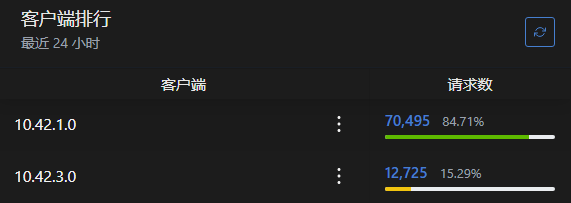
You can identify different devices by using extended domain names and adding URL paths.
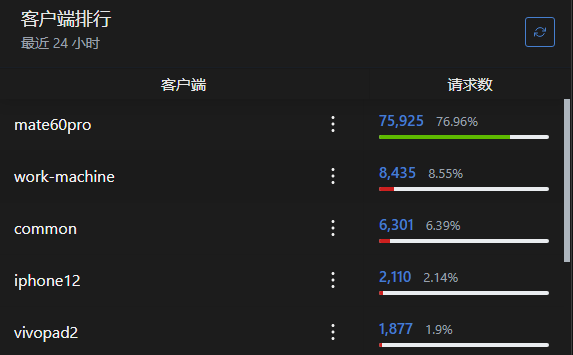
- For DoT, use the extended domain name method, e.g.,
tls://device1.xxxxxxxx.adguardprivate.com - For DoH, use the added URL path method, e.g.,
https://xxxxxxxx.adguardprivate.com/dns-query/device2
Note:
- Android devices do not require entering the protocol prefix
tls://during setup; simply inputdevice1.xxxxxxxx.adguardprivate.com - Apple devices follow setup instructions by entering a client ID and downloading a configuration file for setup, without manual input
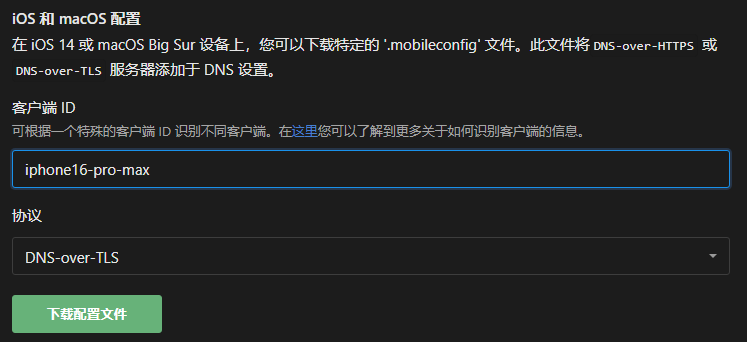
All devices under personal service share the service’s query limit of
30requests per second.
6 - Faster Request Response
Faster Request Response: Properly configure cache TTL, upstream mode, and region selection to reduce first-packet latency and retry rate, significantly improving perceived speed.
Paid users utilize AdGuard’s private service. The DNS request path is as follows:

The fastest response solution can be analyzed based on this path.
Local Cache Hit
The fastest response is a local cache hit. Since the local cache operates at memory level, it’s extremely fast—taking only a few microseconds.
This is controlled by the DNS response’s TTL (Time to Live) value, typically ranging from minutes to hours, indicating that query results remain valid during this period and don’t require re-querying.
You can set the minimum TTL value at Control Panel -> Settings -> DNS Settings -> DNS Cache Configuration -> Override Minimum TTL Value. Increasing this value extends cache duration, allowing the system to utilize local cache more frequently. The typical TTL value is 600 seconds.
However, since our service also includes filtering capabilities, if a required service is mistakenly blocked by ad-blocking rules, temporarily disabling encrypted DNS won’t immediately grant access because the local cached result has been modified by filtering rules. Therefore, setting it to 60 seconds is a safer value, ensuring that in rare cases users won’t wait too long after disabling encrypted DNS due to accidental blocking.
AdGuard DNS Servers
We currently use Alibaba Cloud servers located in Hangzhou, which can meet low-latency needs for most users in eastern China. As business grows, we will expand server coverage nationwide in the future.
Server Cache Hit
By default, each user is allocated 4MB of DNS cache, which experience shows is sufficient for household usage. Free modification of this setting may lead to forced service termination, so we’ve disabled user access to modify this setting.
Upstream DNS Servers
Using Alibaba Cloud services, we’ve selected Alibaba’s DNS service as the upstream provider, which typically returns results within milliseconds.
Users have three methods to request upstream DNS servers:
- Load Balancing: Enabled by default, automatically selects the fastest server to return results.
- Parallel Requests: Currently unrestricted in our service.
- Fastest IP Address: Currently a meaningless setting; modification entry has been disabled.
Explanation why “Fastest IP Address” is meaningless: The truly fastest IP should be selected by the device actually accessing the service. When AdGuard operates in Hangzhou while the user is in Beijing, AdGuard might consider Hangzhou IPs fastest, but in reality Beijing-based services would be quicker for the user. Selecting Hangzhou IPs would actually increase latency. Therefore, we’ve disabled this setting modification. This setting might be useful in home networks but meaningless in public services.
Many factors affect network experience: server bandwidth, network congestion, server load, network quality, etc. Selecting the “fastest IP” doesn’t guarantee the fastest response—latency is just one factor among many. To prevent user misconfiguration from degrading service quality, we’ve disabled this setting.
Rule Filtering
The most common mode is blacklisting, where users can select from preset blacklists. Blacklist hits use hash algorithms—hit time remains O(1) regardless of rule volume, so users needn’t worry about performance degradation from large rule sets.
However, rules are stored in memory after computation. Each user’s service is limited to 300MB memory usage, sufficient for most needs. Excessively large rule sets may cause memory shortages, leading to repeated service restarts and interruptions.
We’ve temporarily disabled third-party rules to prevent users from importing oversized rule sets. Third-party rule support will be reinstated when better restriction methods become available.
Summary
To achieve faster request responses, users can:
- Appropriately increase the minimum TTL value to improve local cache hit rate.
- Set appropriate DNS cache size (preset value already configured).
- Select geographically closest cities when creating services (pending business expansion).
- Use load balancing for domestic needs; use parallel requests for overseas needs.
- Use appropriate blacklist rules, avoiding oversized rule sets.
7 - Setting Up Trusted DNS Providers
When creating a paid service, it defaults to using faster domestic upstream services, including Alibaba’s IPv4, IPv6, and DoT services.
Some DNS providers may have resolution errors, resolving certain overseas websites to incorrect IP addresses, making them inaccessible. A common symptom is browsers reporting certificate errors.
To avoid resolution errors, you can switch to upstream providers like Cloudflare. When using such services, ensure you’re using the DoH or DoT protocols to prevent hijacking.
Additionally, you need to disable domestic upstream services because they are geographically closer and faster, causing AdGuard to prioritize them.
Add a # before the corresponding service IP to disable that upstream service.
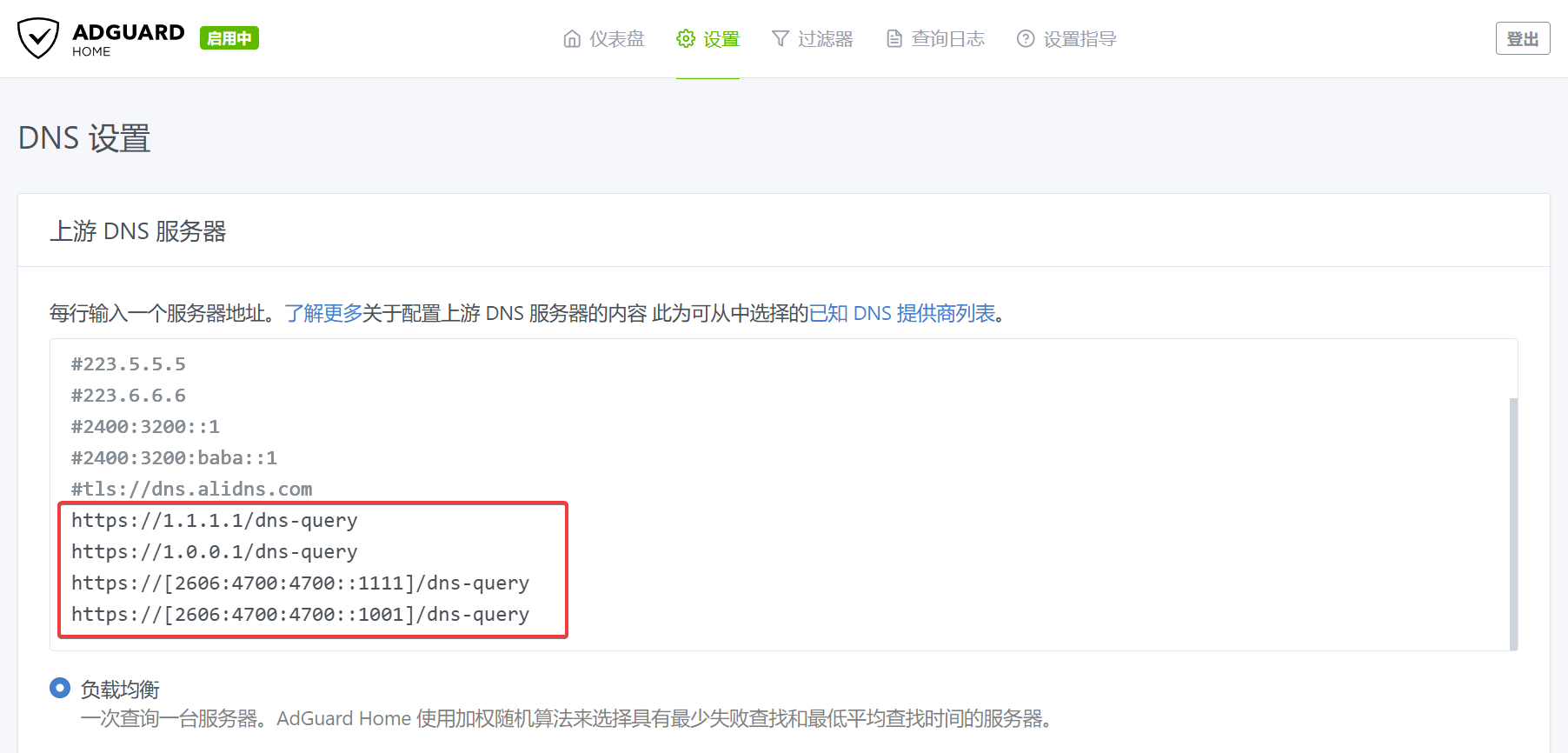
After configuration, Test Upstream to ensure the upstream server is available, then Apply.

However, using only overseas services may degrade the experience for domestic apps, as these apps typically resolve overseas domains to specific external servers with slower domestic access speeds.
If you only need to avoid resolution errors for commonly used services, you can manually specify DNS addresses for misresolved domains while keeping other domains on default domestic upstream services.
In the AdGuard console, go to Settings -> DNS Settings -> Upstream DNS Servers. Add misresolved domains in the format [/example1.com/example2.com/]tls://1.0.0.1 to Custom DNS Servers, then click Save Settings.
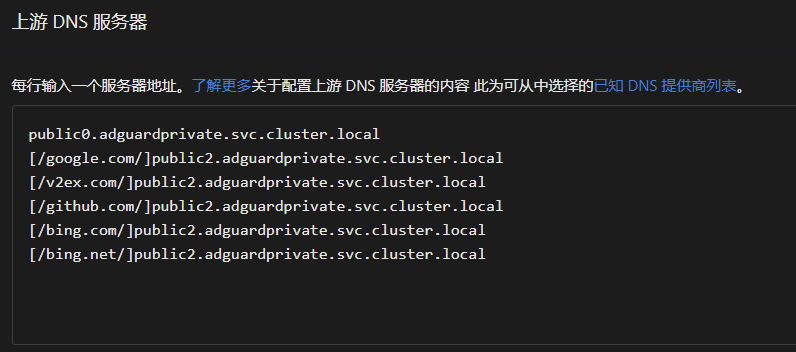
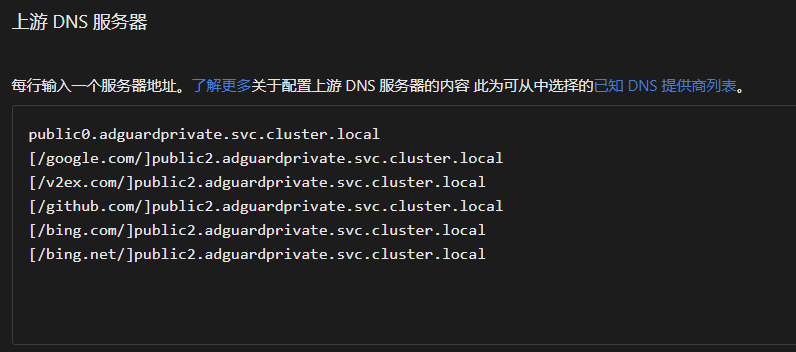
public2.adguardprivate.svc.cluster.local is our internally provided error-free resolution service, using Cloudflare as upstream. Compared to users manually specifying overseas upstreams, it offers faster resolution speeds at the cost of minor delays in DNS updates. Users without professional needs can use our error-free resolution service.
To use external Cloudflare or Google resolution addresses, specify IPs with DoT/DoH. Examples:
#tls://1.1.1.1
tls://1.0.0.1
tls://[2606:4700:4700::1111]
tls://[2606:4700:4700::1001]
tls://[2606:4700:4700::64]
tls://[2606:4700:4700::6400]
https://1.1.1.1/dns-query
https://1.0.0.1/dns-query
https://[2606:4700:4700::1111]/dns-query
https://[2606:4700:4700::1001]/dns-query
#tls://8.8.8.8
#tls://8.8.4.4
tls://[2001:4860:4860::8888]
tls://[2001:4860:4860::8844]
tls://[2001:4860:4860::64]
tls://[2001:4860:4860::6464]
#https://8.8.8.8/dns-query
#https://8.8.4.4/dns-query
#https://[2001:4860:4860::8888]/dns-query
https://[2001:4860:4860::8844]/dns-query
Addresses prefixed with
#are commented out, indicating they are currently blocked by firewalls and unavailable.
Our site fully supports IPv6, which is one of our key advantages. You can use IPv6 upstream addresses for more stable resolution speeds.